Connect your own Claude or ChatGPT to your workspace
Sign Claude, ChatGPT or Claude Code in to a Mampu AI workspace with your own login, choose what it may do, and ask about your chats in plain language.
Read inBahasa Melayu中文
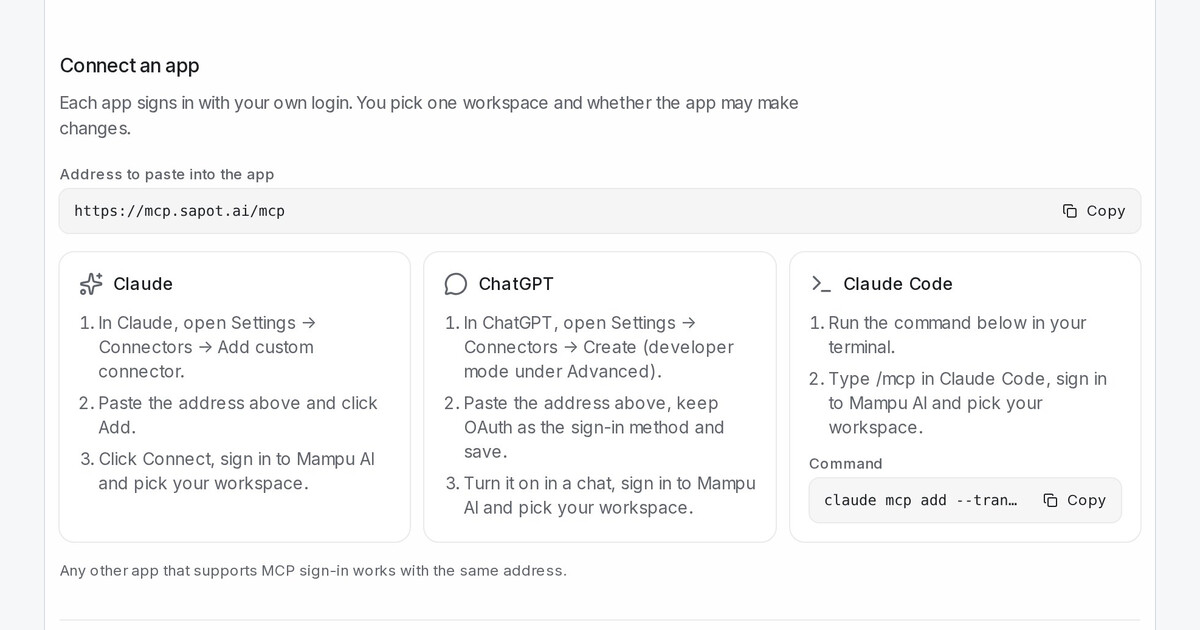
Mampu AI can now connect the AI app you already use — Claude, ChatGPT or Claude Code — to one workspace with your own login. No key to copy: the app sends you to a Mampu AI sign-in page, you pick the workspace and whether it may make changes, and then you ask about your chats, contacts, reports, flows and knowledge in plain language.
How do I connect Claude or ChatGPT to Mampu AI?
- Open Settings → Use with AI and copy the Address to paste into the app.
- In Claude, open Settings → Connectors → Add custom connector and paste it. In ChatGPT, open Settings → Connectors → Create. In Claude Code, run the Command on the card.
- Click Connect in the app, sign in to Mampu AI, pick your workspace and tick Make changes if the app may act for you.
- Ask it "What can you do here?".
What can a connected app do, and what can it never do?
- Reading is always included, and the app only gets what your own role allows.
- With Make changes it replies to customers, labels and assigns chats, edits contacts, knowledge, flows and templates, and drafts blasts.
- It can never publish a flow, send a blast, or change settings, billing or the team.
- Your connections lists each app with Revoke. Administrators see everyone's and can switch Allow team members to connect AI apps off to cut every app off at once.