Put labels in your own order
Admins can now arrange labels and their categories, and the sidebar and the label picker on a conversation follow that order for everyone.
Read inBahasa Melayu中文
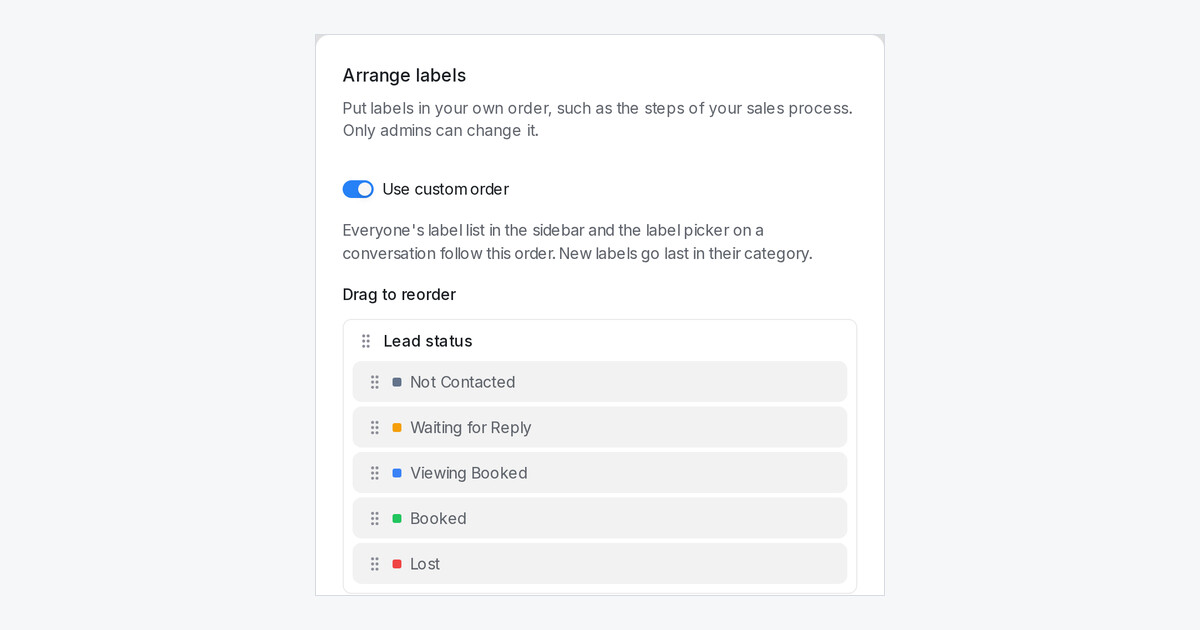
Lead-status labels used to sit A to Z, so Booked came before Not Contacted unless you numbered the names. An administrator can now put labels in the order your team actually works.
How do I set the order?
Open Settings → Labels and click Arrange labels. Turn on Use custom order, drag the categories into place, then drag the labels inside each one, for example Not Contacted, Waiting for Reply, Viewing Booked, Booked, Lost. Click Save order.
Where does it show?
Everyone's labels in the sidebar follow the order, and so do the Add Labels picker on a conversation and the Assign label list when you right-click a conversation. While it is on, the sidebar's label sort menu is hidden, so the whole team sees the same list. A new label goes last in its category. Filters, reports and contacts keep listing labels A to Z.
Can I go back?
Turn Use custom order off and save, and each person's own sort comes back. The order you saved is kept, so turning it on again restores it.