Send files and images with automated messages
Attach a file to a Send a Message action — it arrives inside the email itself, or as WhatsApp media with your message as the caption.
Read inBahasa Melayu中文
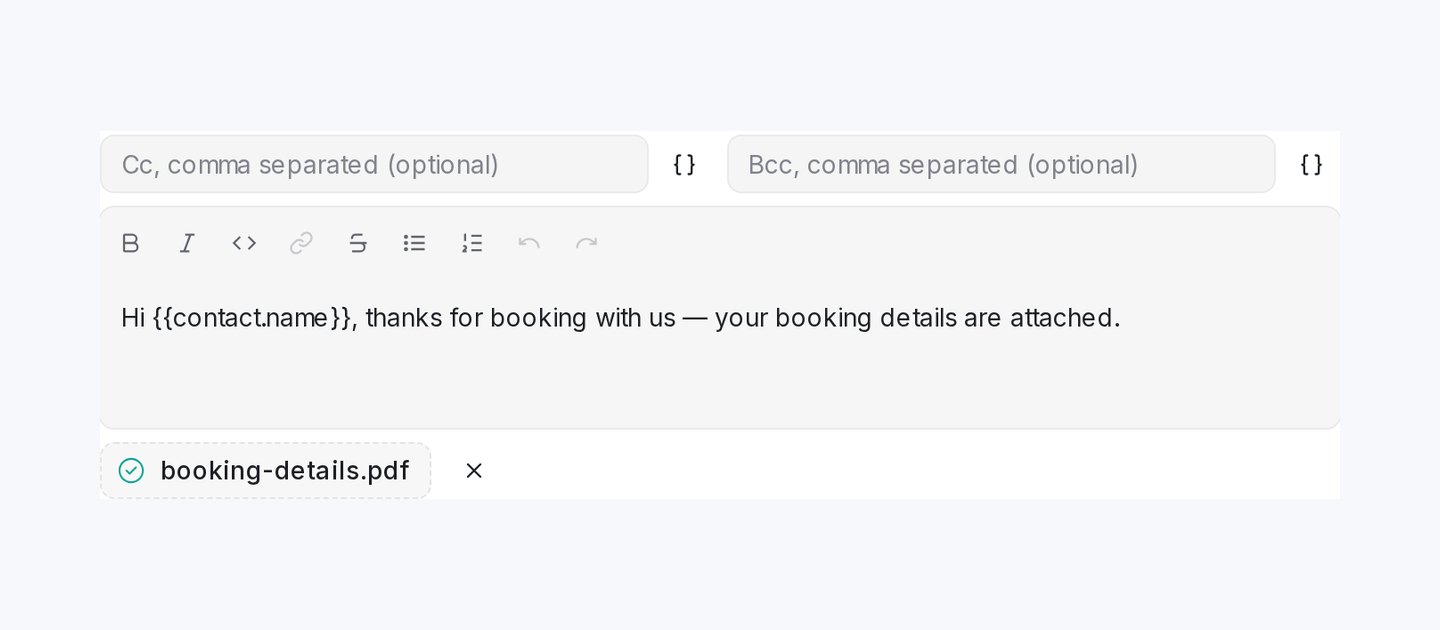
Mampu AI can now attach a file, such as a brochure, price list or photo, to the Send a Message action in Automation rules and Inbound Webhooks, so it goes out together with your automated message.
How do I attach a file to an automated message in Mampu AI?
- Go to Settings → Automation and create or edit a rule.
- Add the Send a Message action and write your message.
- Click Upload Attachment under the message editor and pick the file.
How is the attached file delivered on each channel?
- On email, the file is attached to the same email as your message, so your contact receives one email with everything in it.
- On WhatsApp and other chat channels, the file is delivered as media, with your message as the caption.
- Each Send a Message action carries one file. To send several files, add a Send a Message action for each one.
- The ✕ beside the file name removes the file again.