Send a photo, a video and several texts from one canned response
A canned response can now hold several messages — texts, photos, videos and files — and one click in the reply box sends them all, one after another.
Read inBahasa Melayu中文
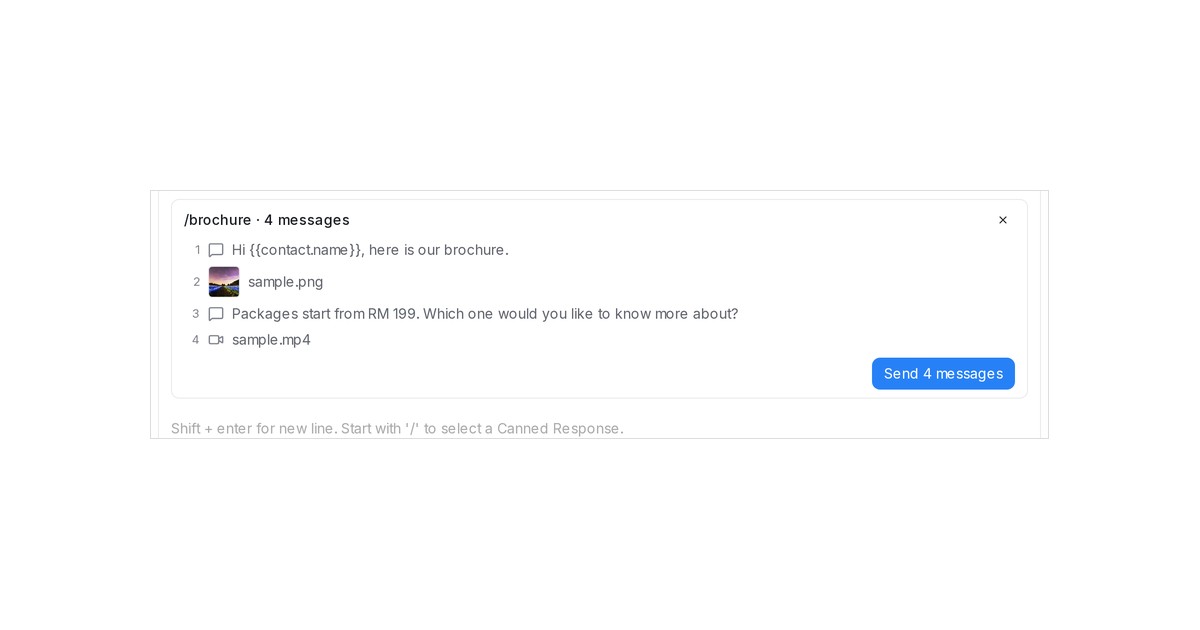
Mampu AI canned responses can now hold several messages: texts, photos, videos and files, in the order you want them to go out. A brochure, a price list and a short video become one shortcut your team sends with a single click from the reply box, instead of attaching each file by hand.
How do I send several messages from one canned response in Mampu AI?
- Open Settings → Canned Responses and click Add canned response, or Edit an existing one.
- Under Messages, write the first text, then use Add text and Add media to add more texts, photos, videos or files. Drag a row to change the order, then click Submit.
- In a conversation, type / and the short code. The list shows the response with its count, for example /brochure · 4 messages.
- Pick it: a card above the reply box lists every message. Click Send 4 messages.
What does my customer receive, and what can I still edit?
- Each message goes out as its own bubble, with variables such as the contact's name filled in.
- Nothing is sent until you click the button; × on the card removes it.
- A canned response with a single text still pastes into the reply box, so you can edit it before sending.
- Files have to fit the channels your account uses; one over the limit is refused when you add it, with the limit shown.