What's new in Mampu AI
Every new feature in Mampu AI, the AI agent and shared inbox for WhatsApp, Instagram, Facebook and your other channels. Newest first, each with a step-by-step guide in the Help Centre.
Read inBahasa Melayu中文
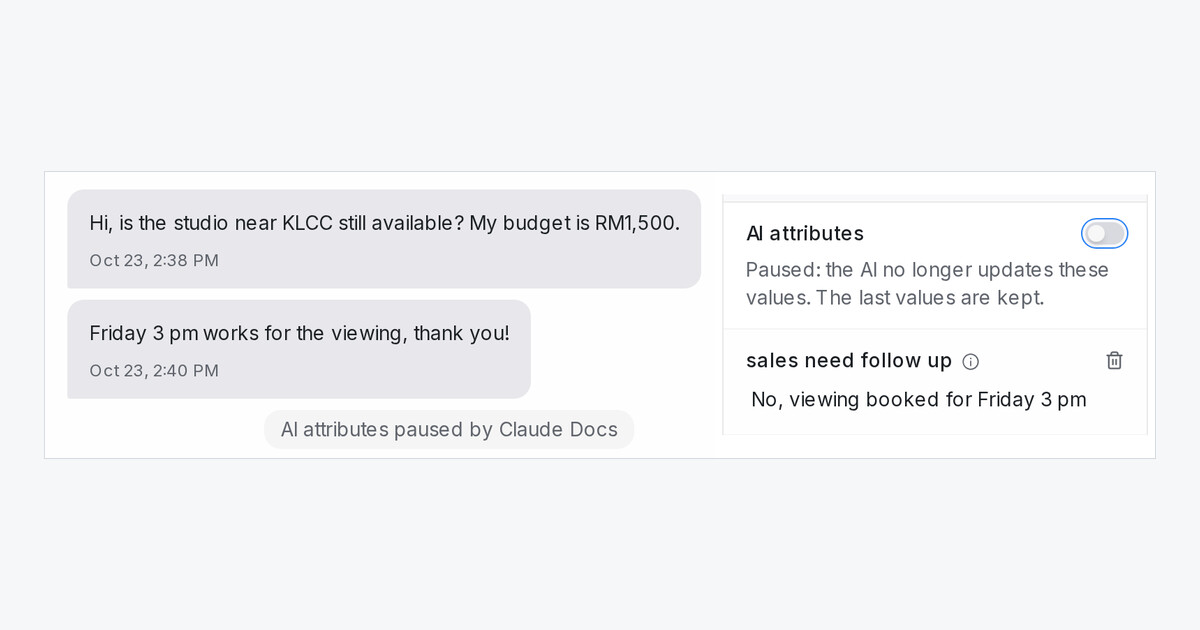
Pause AI attributes for a conversation that no longer needs them
Turn AI attributes off for one conversation, or pause them with a rule, and the AI stops updating them while the last values stay.
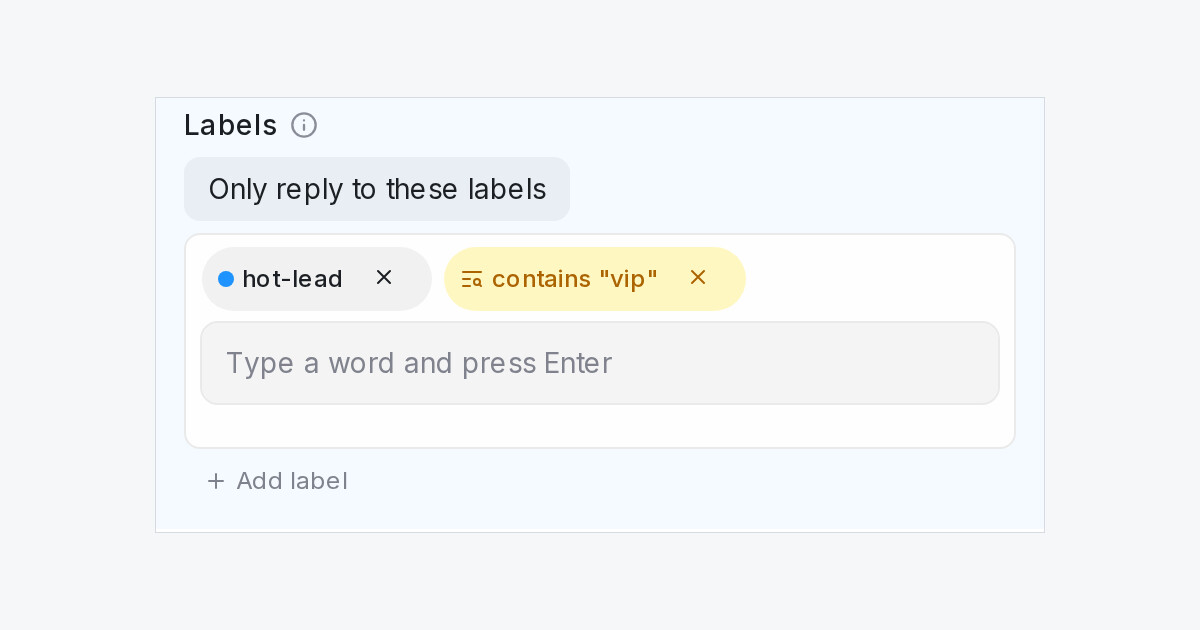
Read more: Pause AI attributes for a conversation that no longer needs themLet a flow agent reply only to customers with certain labels
On each inbox, choose Only reply to these labels and the flow agent answers only customers who carry one of the labels you pick.
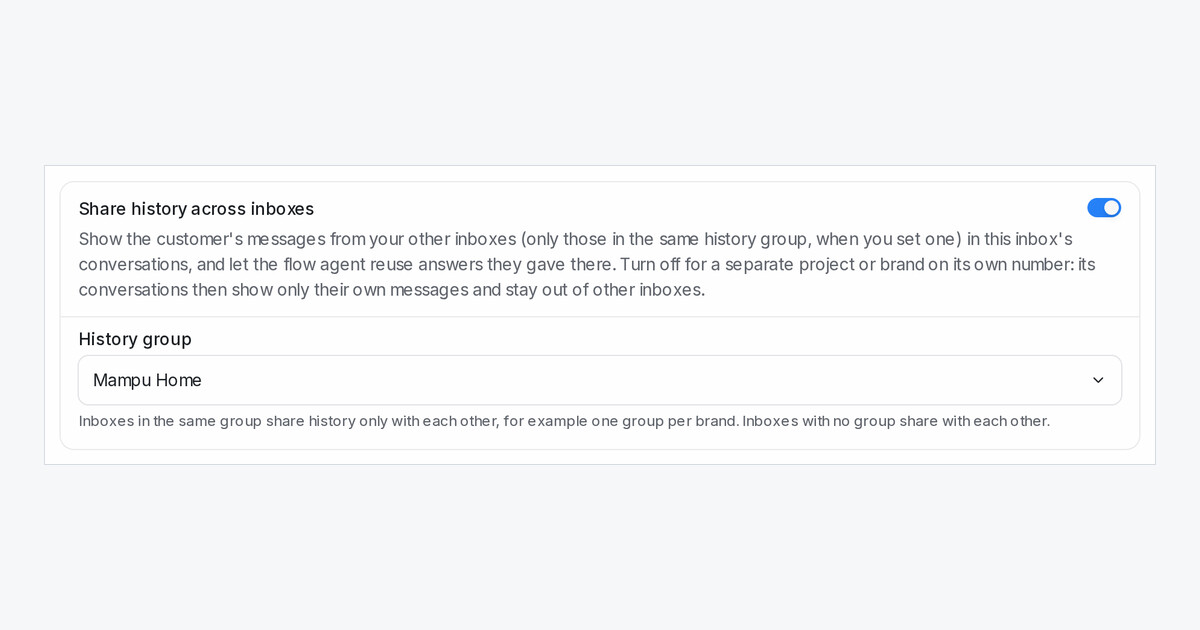
Read more: Let a flow agent reply only to customers with certain labelsShare customer history within a group of inboxes
Put each brand's inboxes in a history group, so a customer's chats show only the messages from that brand's numbers.
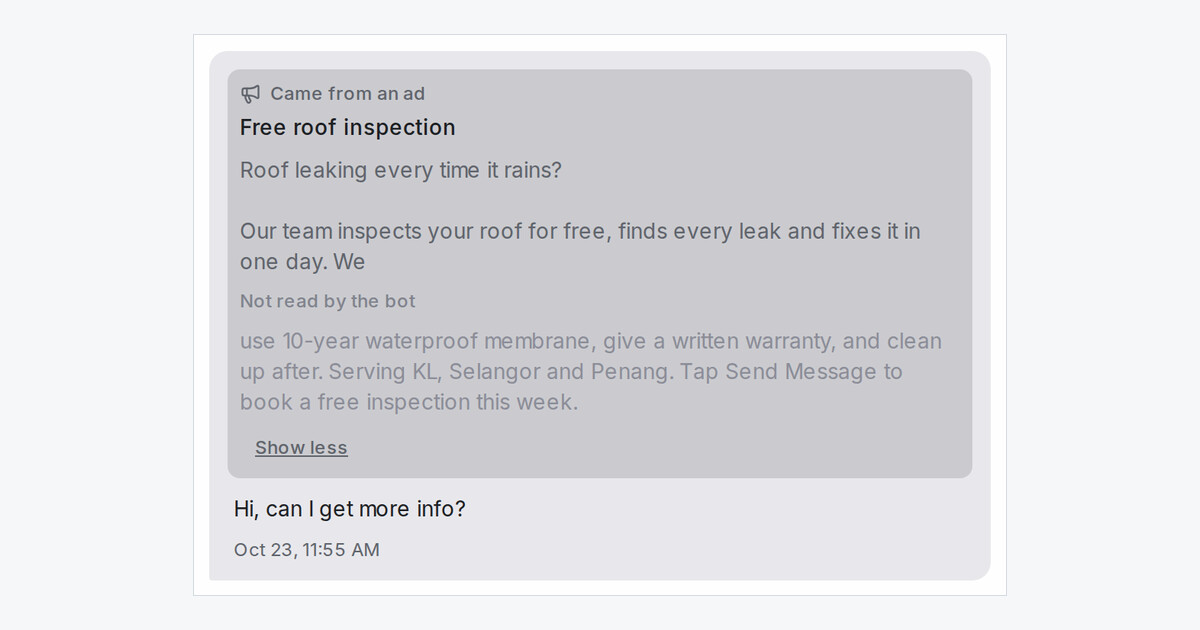
Read more: Share customer history within a group of inboxesYour flow agent now reads your Meta ad's text, and you can test it
The flow agent reads a WhatsApp ad's text as well as its headline. Test it in the Playground with the new Ad headline and Ad text fields.
Read more: Your flow agent now reads your Meta ad's text, and you can test itTry message sequences and automation rules on your testers first
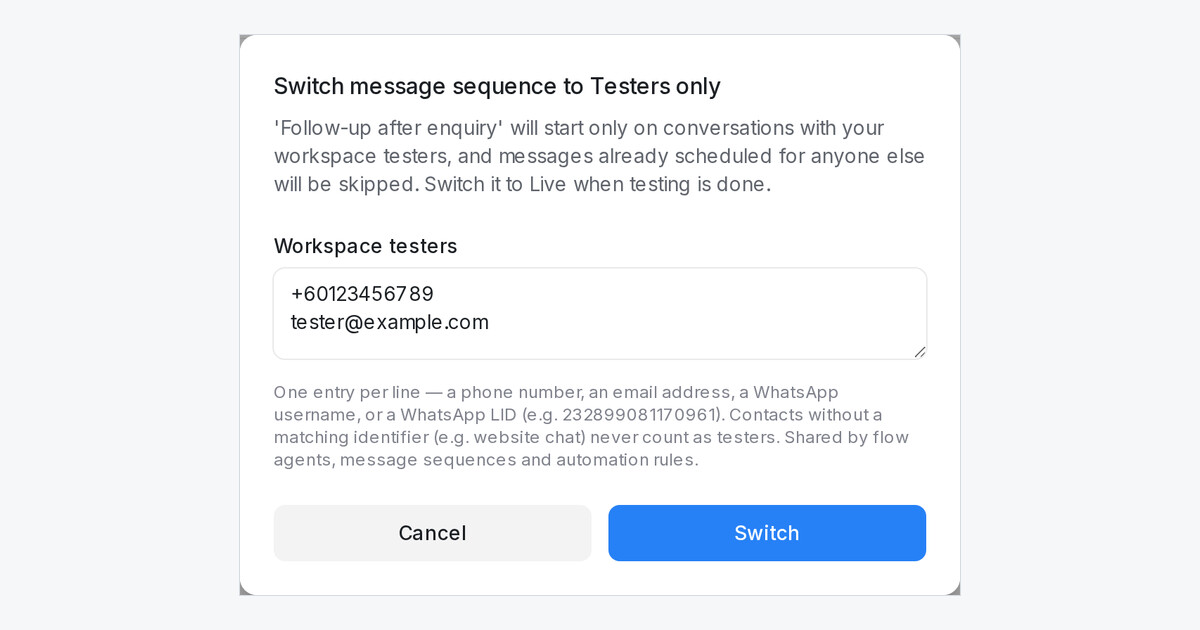
Switch a message sequence or automation rule to Testers only and it runs for your workspace testers alone until you switch it to Live.
Read more: Try message sequences and automation rules on your testers firstSpot a WhatsApp payment problem and fix it in one click
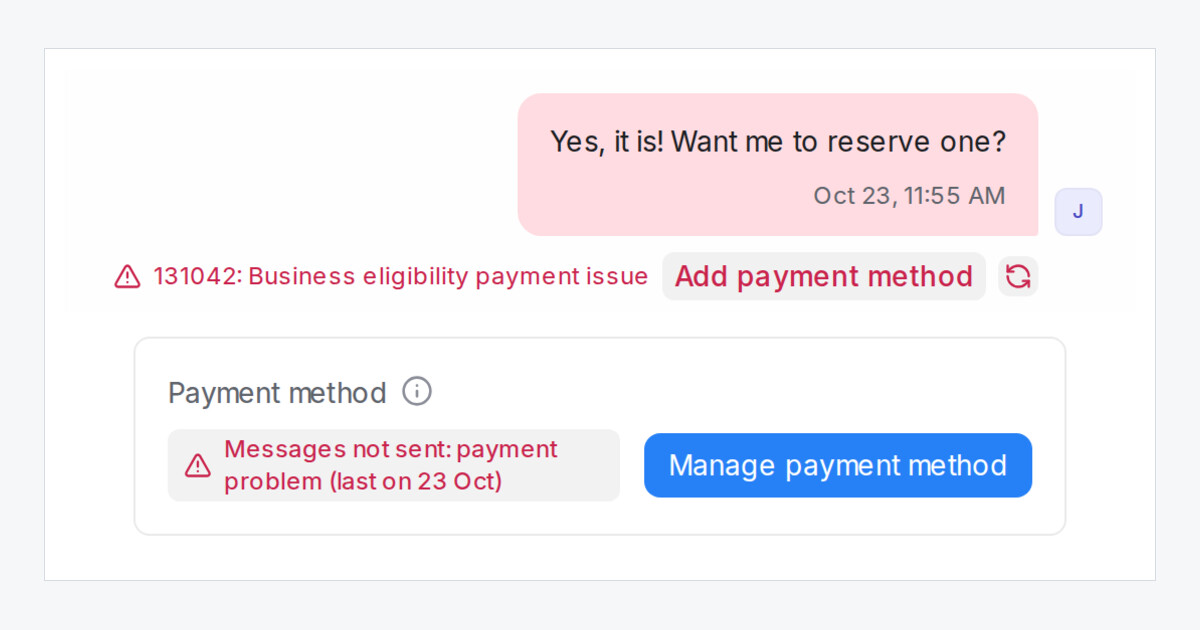
Mampu AI now shows when Meta stops your WhatsApp messages over payment, with a button that opens that number's billing page in Meta.
Read more: Spot a WhatsApp payment problem and fix it in one clickImport WhatsApp usernames and reach them in blastings
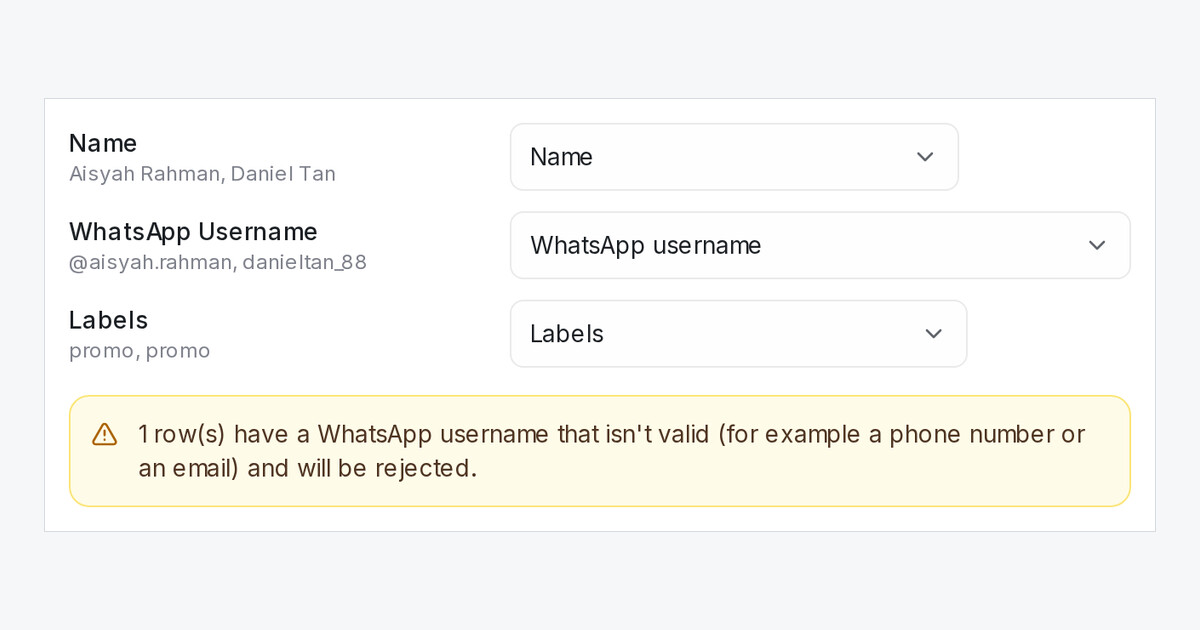
Contacts import and blasting lists now take a WhatsApp Username column, so customers who chat by username can be added and reached.
Read more: Import WhatsApp usernames and reach them in blastingsPut labels in your own order
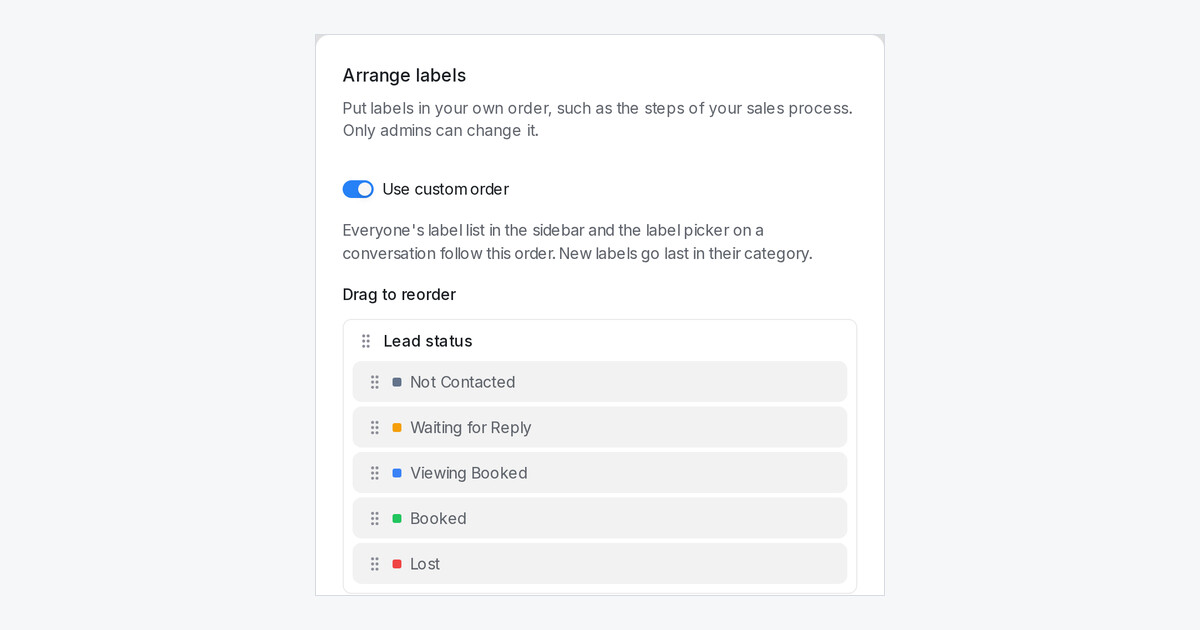
Admins can now arrange labels and their categories, and the sidebar and the label picker on a conversation follow that order for everyone.
Read more: Put labels in your own orderDelete rude comments on your Facebook and Instagram posts automatically
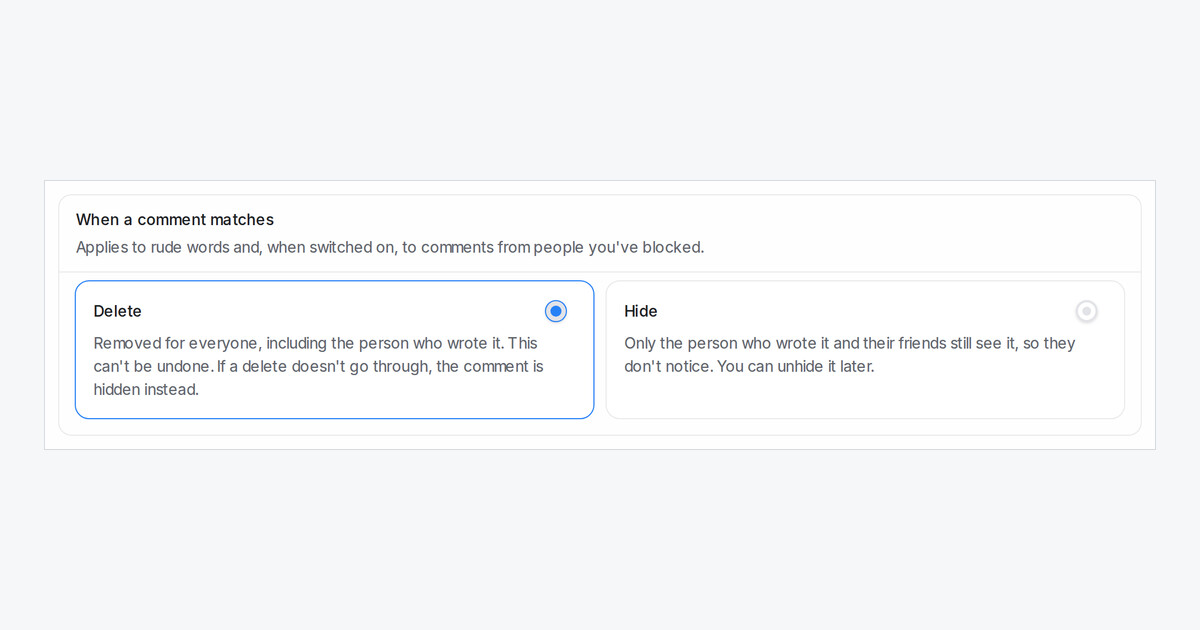
Pick the pages to watch and a list of rude words. Matching comments are deleted or hidden at once, and listed in a new Removed Comments report.
Read more: Delete rude comments on your Facebook and Instagram posts automaticallyReplies sent from your phone now mark the chat as read
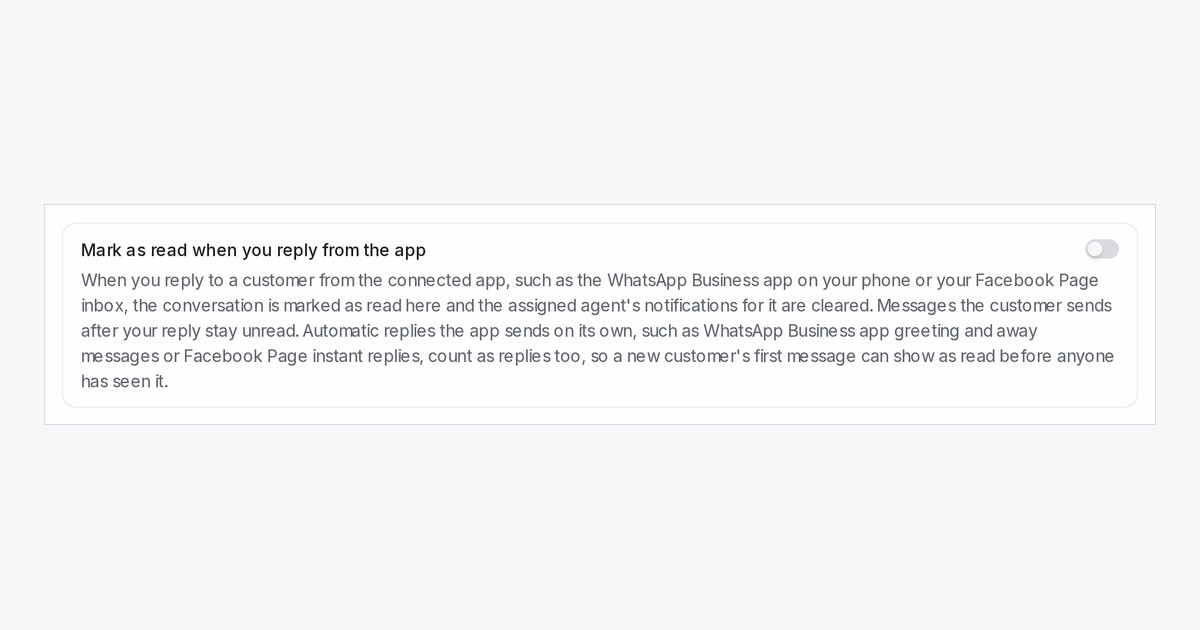
Turn on a switch per inbox and a reply sent from the WhatsApp Business app or your Facebook Page inbox marks that chat read in Mampu AI.
Read more: Replies sent from your phone now mark the chat as readSee who sent the last message in your conversation list
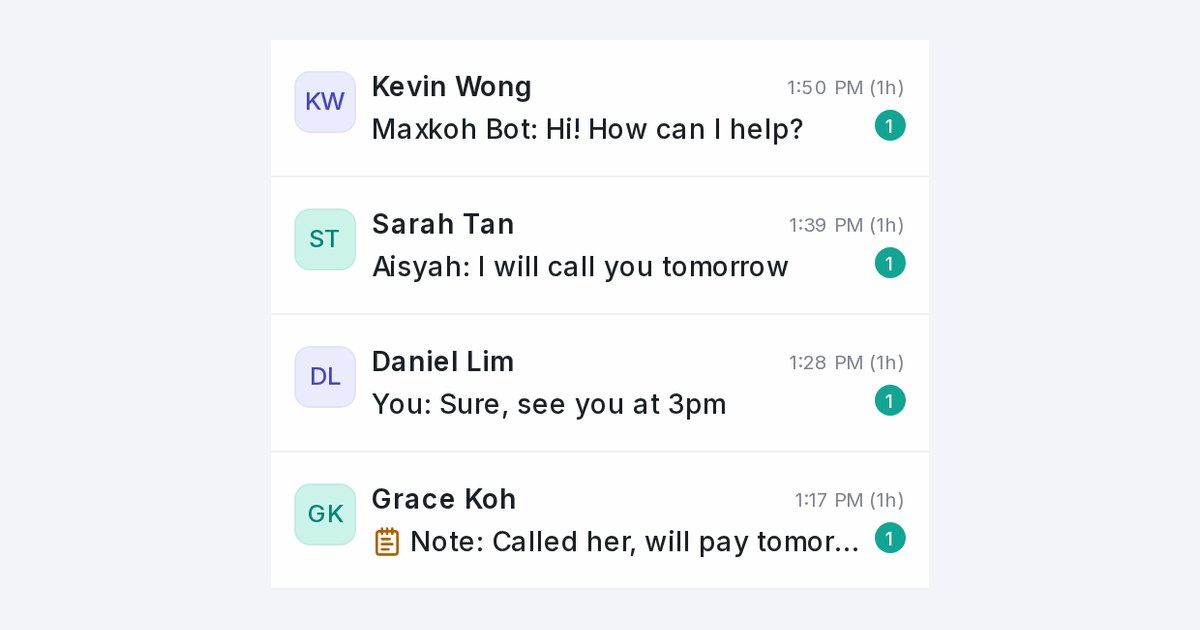
Each conversation now starts with who sent the last message, such as You, a teammate, your AI agent's name, Sequence or Note.
Read more: See who sent the last message in your conversation listSend each inbox down its own route in a flow agent
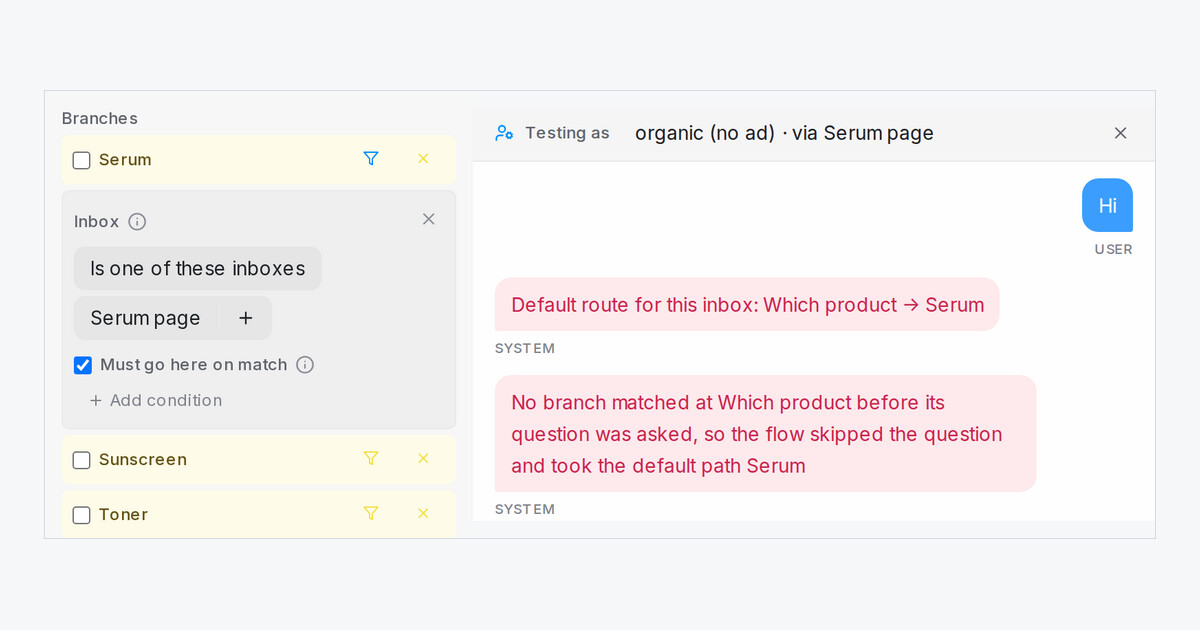
Add an Inbox condition to a route. Customers on that inbox skip the question and go straight to it, while other inboxes still offer it as a choice.
Read more: Send each inbox down its own route in a flow agentTake time off without missing leads
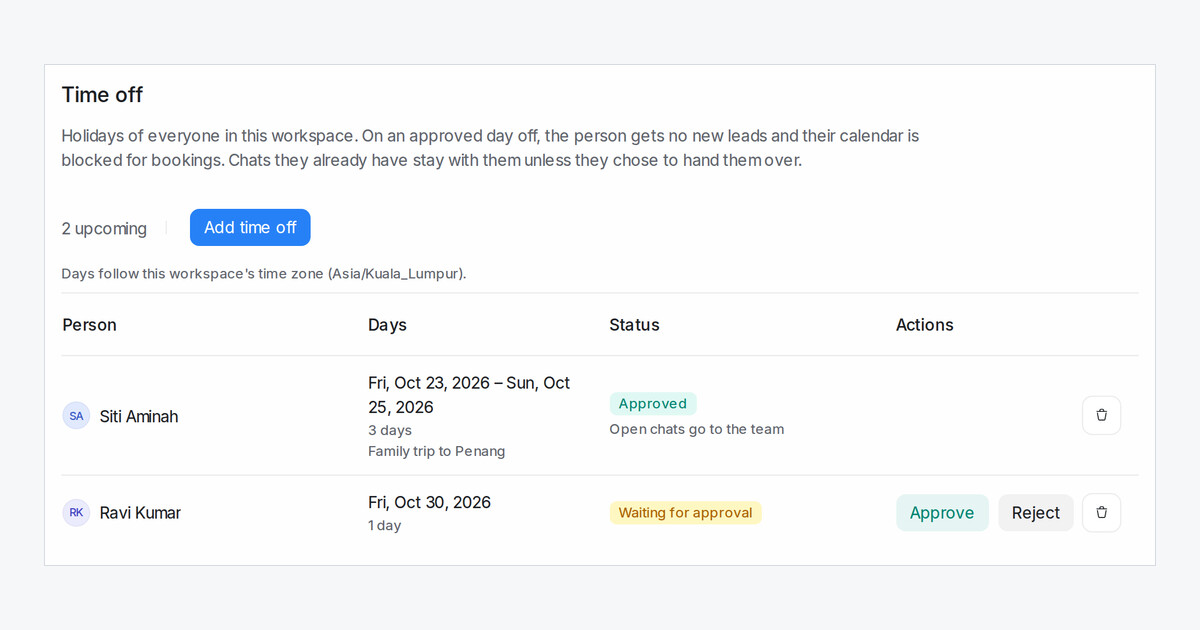
Mark holidays in Settings, Time off. On an approved day off the person gets no new leads and their calendar is blocked, and agents can ask for their own days.
Read more: Take time off without missing leadsDelete your workspace yourself, with 7 days to change your mind
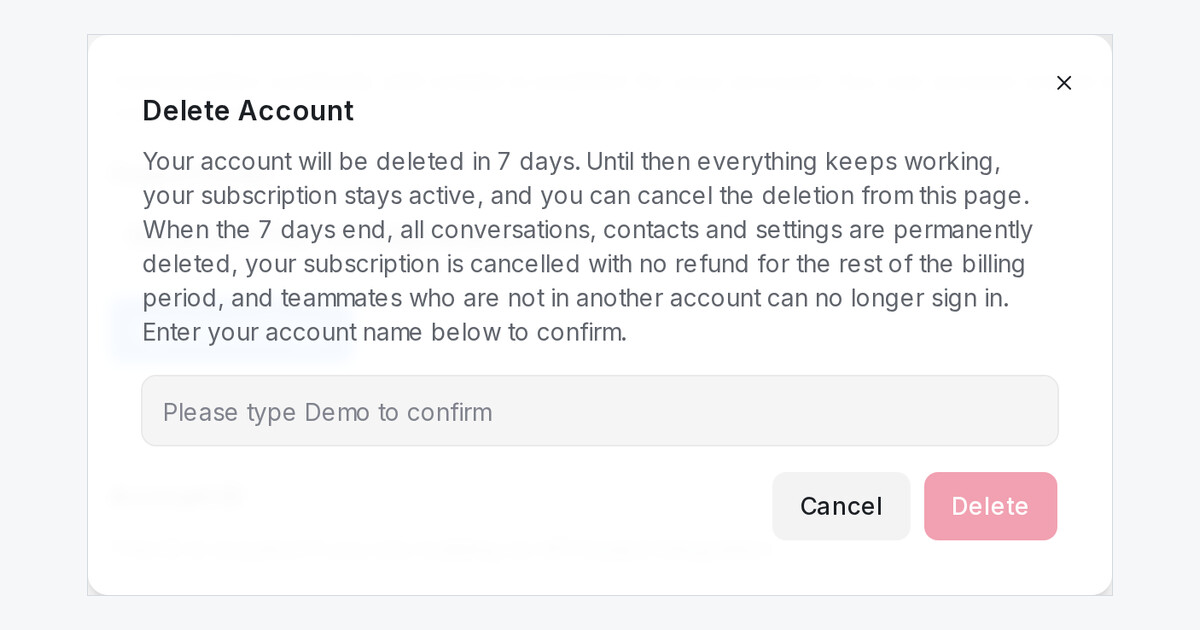
Admins can now delete their workspace from Account Settings. It is removed after 7 days, and you can cancel any time before then.
Read more: Delete your workspace yourself, with 7 days to change your mindFill AI attributes from a profile your team keeps
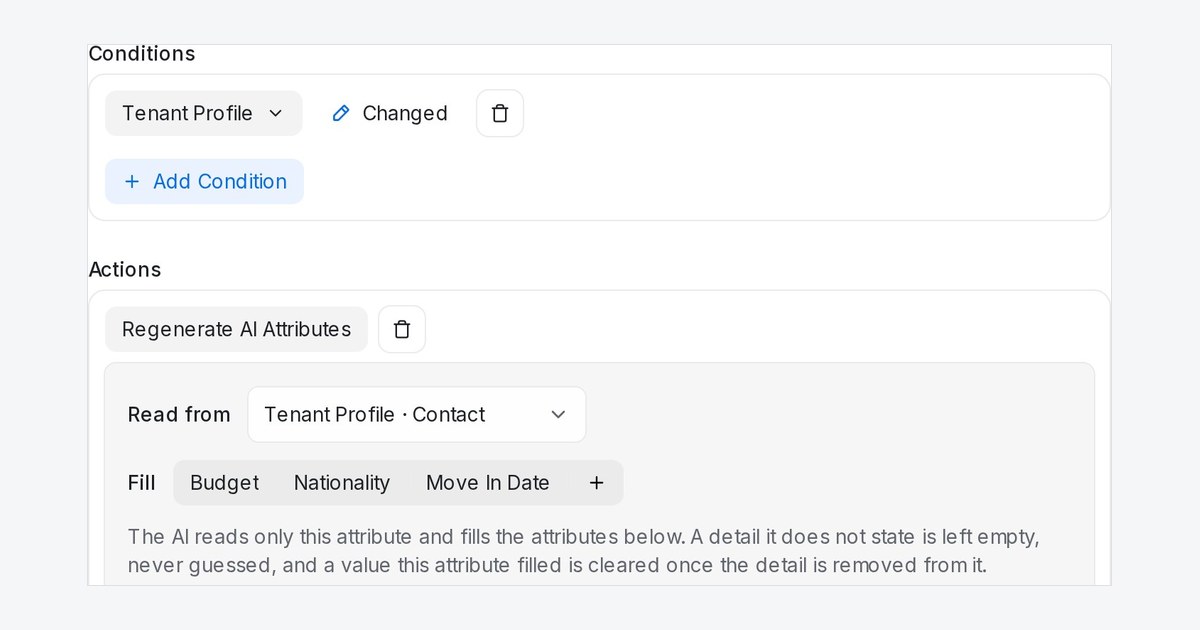
An automation rule can now read one attribute, such as a Tenant Profile, and fill your other AI attributes from it, only the ones you pick.
Read more: Fill AI attributes from a profile your team keepsTest your Flow Agent with your voice in the Playground
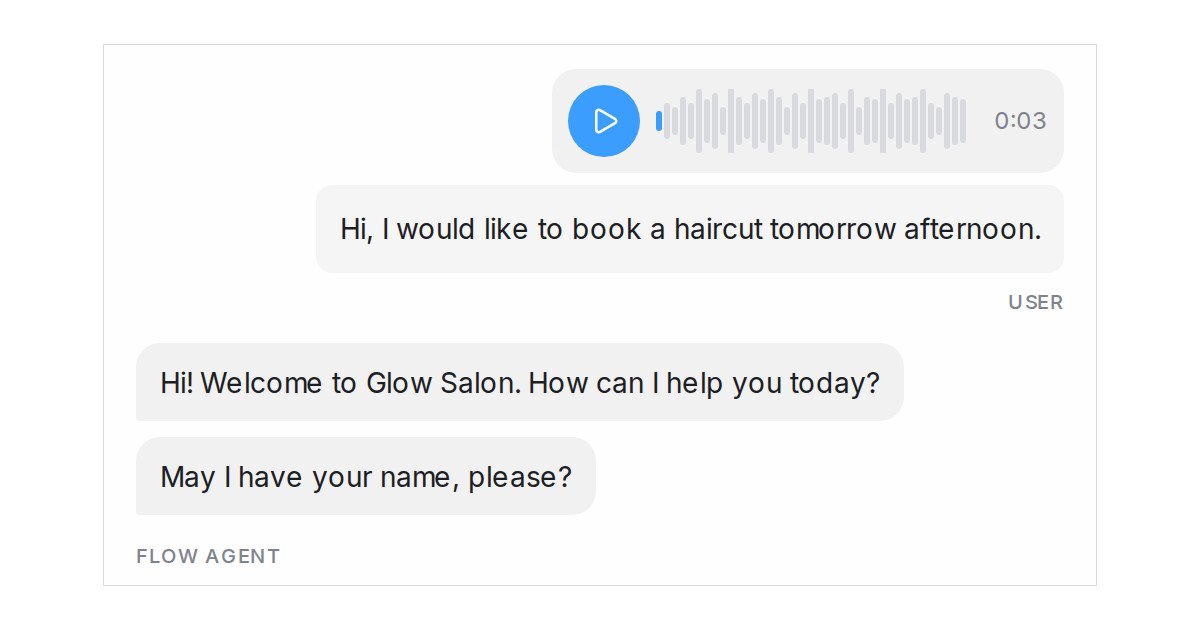
Press the microphone in the Playground, speak as the customer and send the voice message with one press. The agent replies as it would to a real voice note.
Read more: Test your Flow Agent with your voice in the PlaygroundSend flow agent handoffs to a chosen team or teammate
Each handoff step of a flow agent can now send the chat to a chosen team or teammate instead of whoever is next in the inbox rotation.
Read more: Send flow agent handoffs to a chosen team or teammateStart your label automations from a contact import
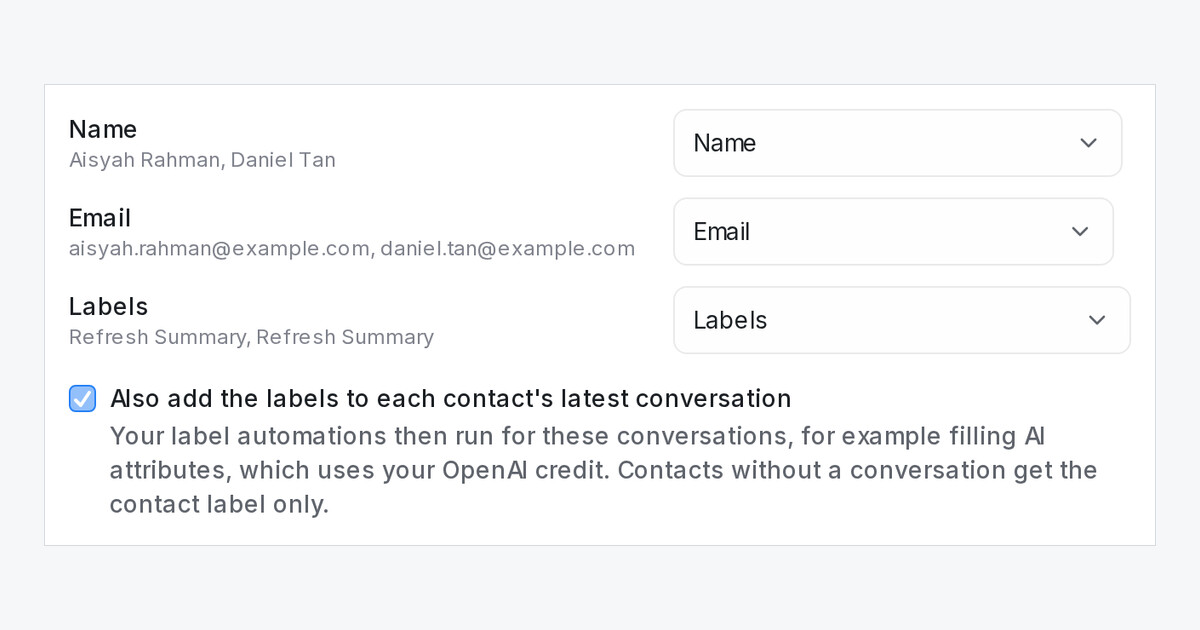
Tick one box when you import contacts with labels, and each contact's latest conversation gets them too, so automations such as AI attributes run.
Read more: Start your label automations from a contact importGet a red alert when your WhatsApp number may be hacked
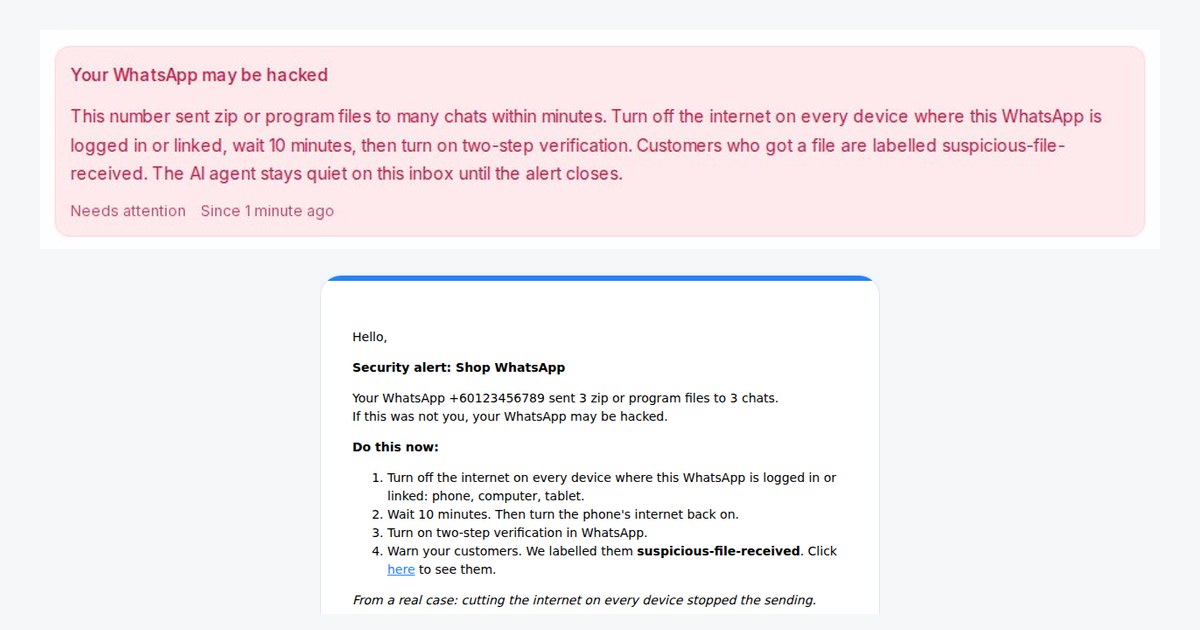
When your WhatsApp sends zip or program files to many chats within minutes, your admins get an email and the customers who got a file are labelled.
Read more: Get a red alert when your WhatsApp number may be hackedGroup your labels into categories
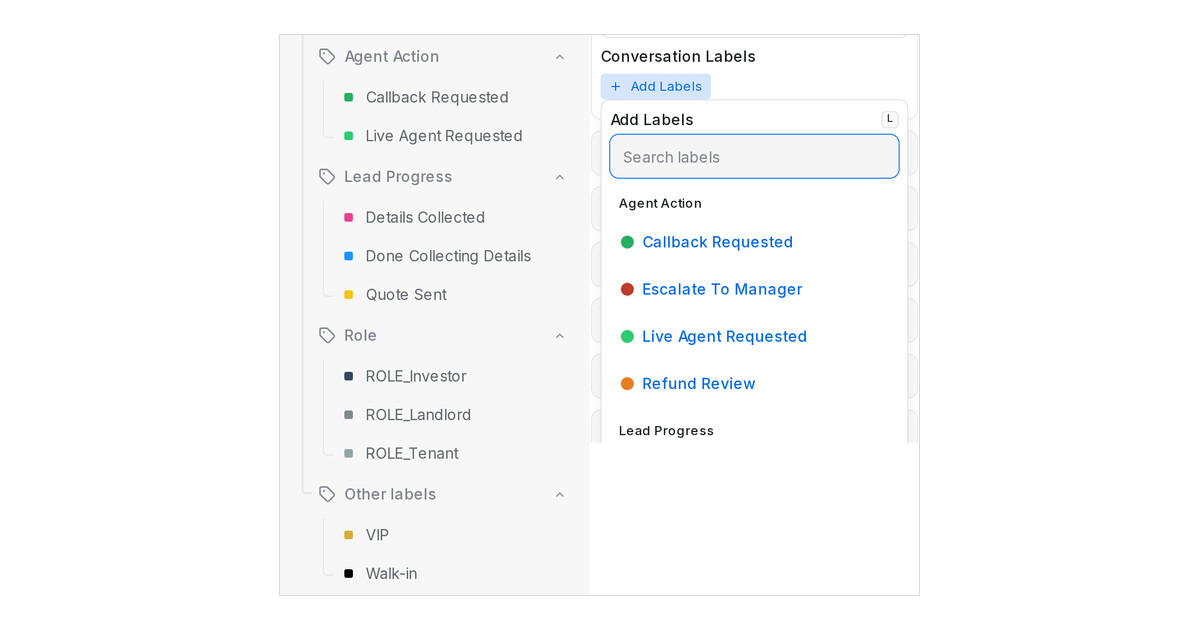
Give each label a category and the sidebar and every label picker show them under headings such as Lead Progress or Role, with Other labels last.
Read more: Group your labels into categories