What's new in Mampu AI
Every new feature in Mampu AI, the AI agent and shared inbox for WhatsApp, Instagram, Facebook and your other channels. Newest first, each with a step-by-step guide in the Help Centre.
Read inBahasa Melayu中文
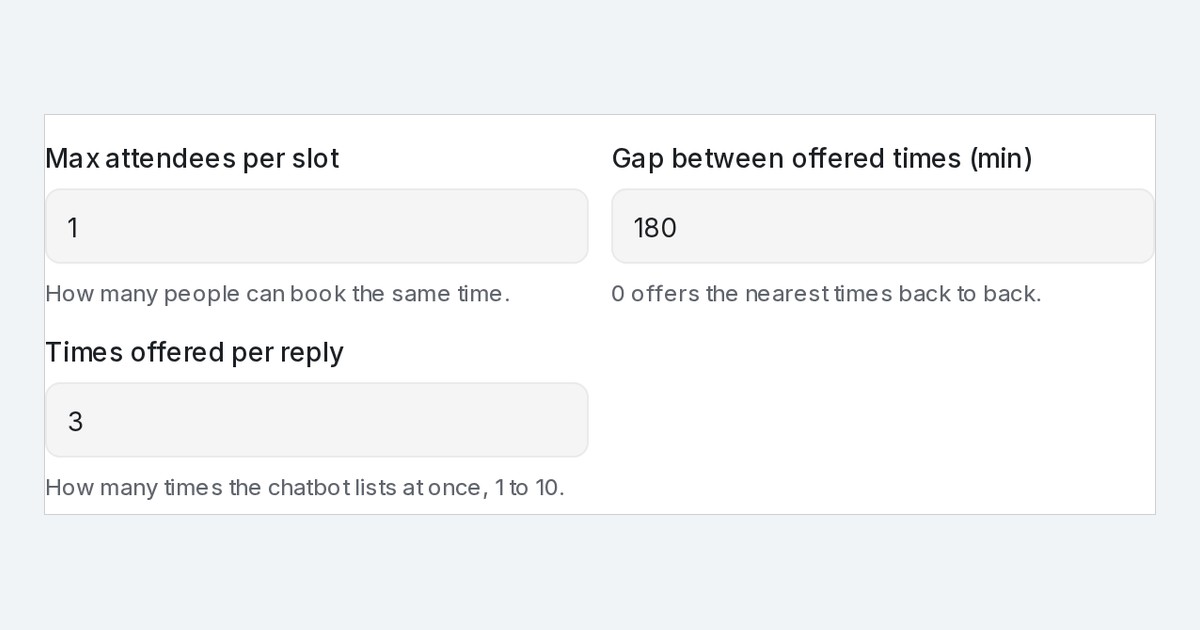
Choose how many appointment times your chatbot offers
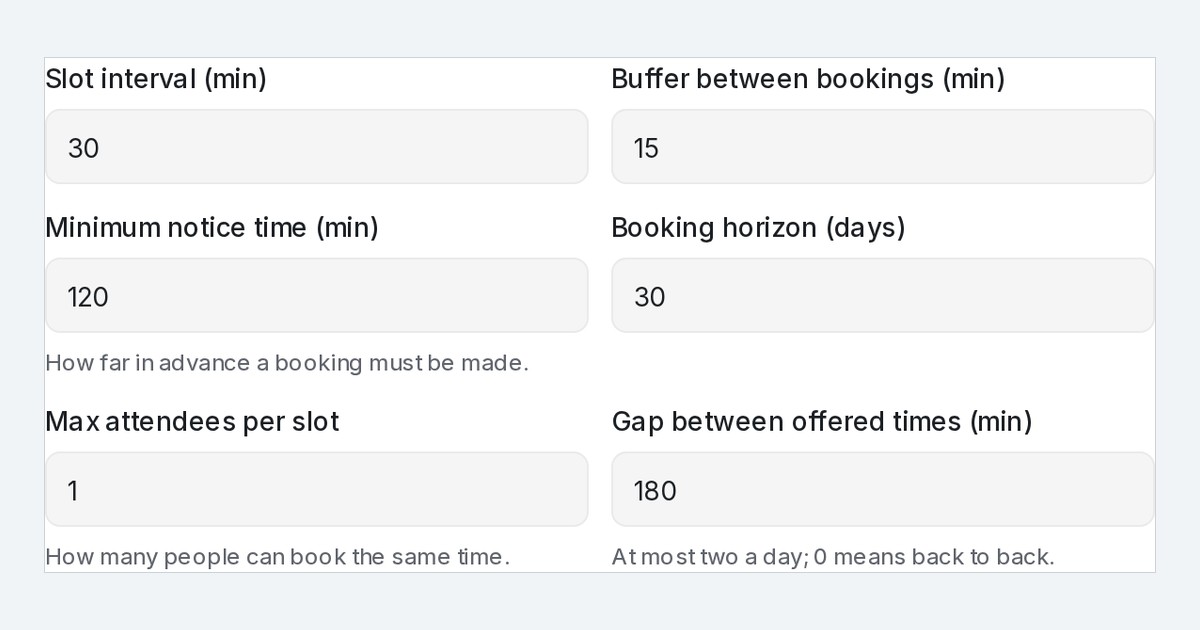
Set how many appointment times a flow agent lists per reply, 1 to 10, for each calendar. Every calendar starts at 3; the gap between times still applies.
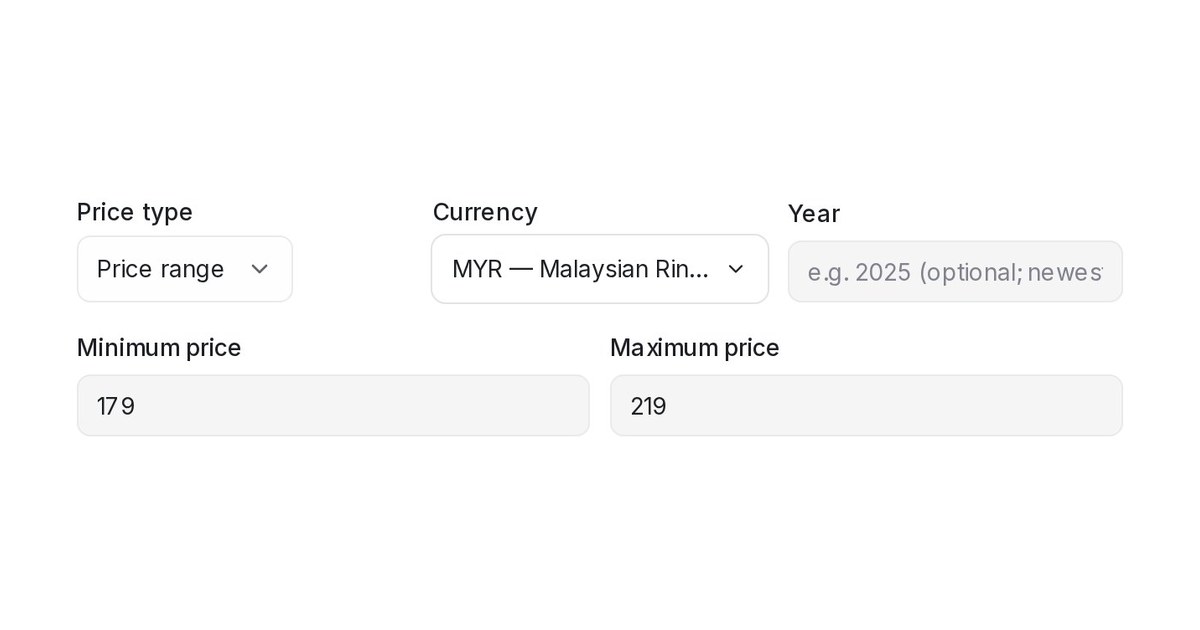
Read more: Choose how many appointment times your chatbot offersPrice a product as a range in your AI product catalogue
Product entries in AI Knowledge can now carry a minimum and a maximum price, and the AI quotes the range to customers instead of one number.
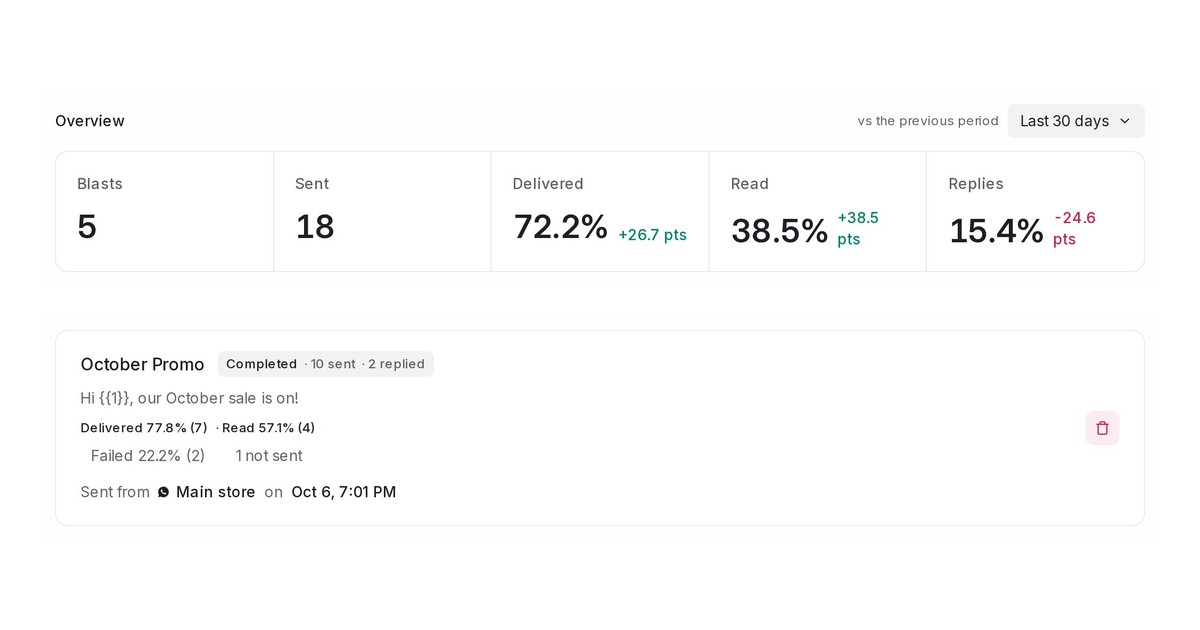
Read more: Price a product as a range in your AI product catalogueSee how each WhatsApp API blast delivered
Every WhatsApp API blast card now shows Delivered, Read, Failed, Pending and Expired counts, and an Overview sums up the period you pick.
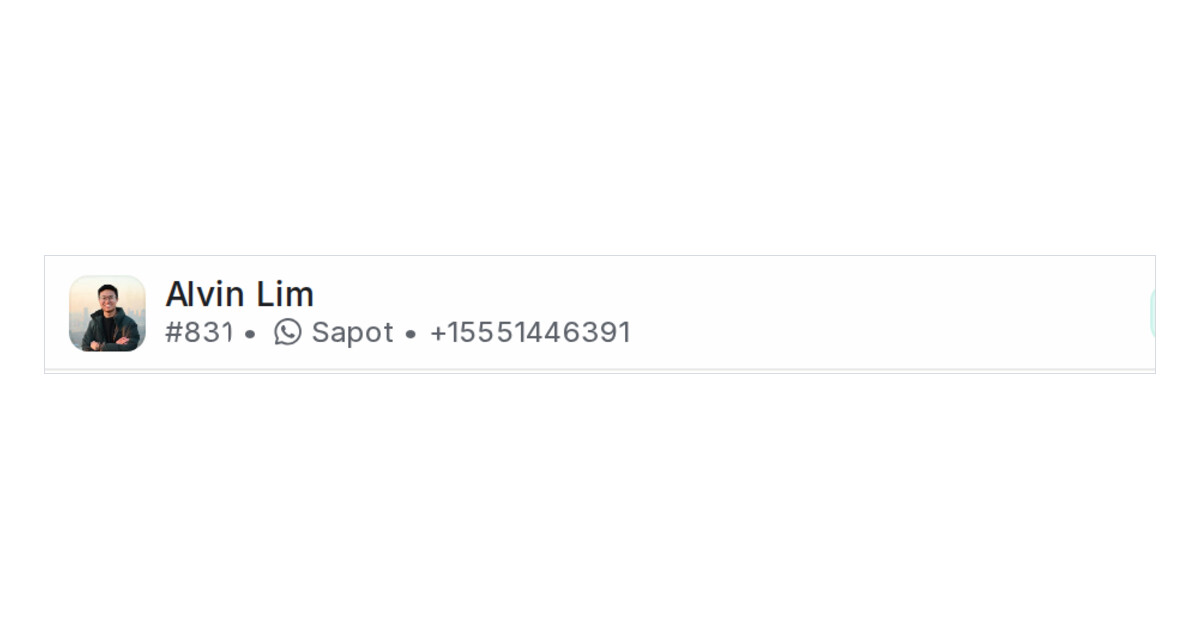
Read more: See how each WhatsApp API blast deliveredSee which WhatsApp number a conversation is on, in the header
The line under the customer's name now shows the number a WhatsApp Cloud or WhatsApp Business inbox sends from, right after the inbox name.
Read more: See which WhatsApp number a conversation is on, in the headerSwitch the Meta Business Suite label sync off for a Facebook Page
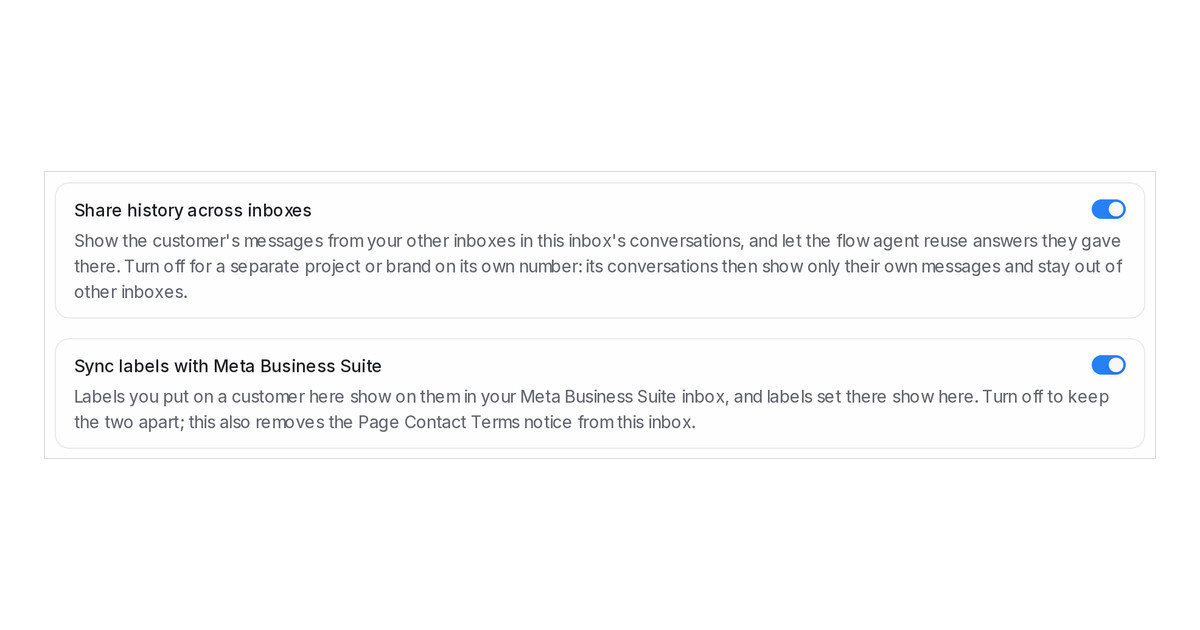
A switch on each Facebook inbox keeps your labels and Meta Business Suite labels apart when you want, and clears the Page Contact Terms notice.
Read more: Switch the Meta Business Suite label sync off for a Facebook PageGive a supervisor only their own inboxes with custom roles
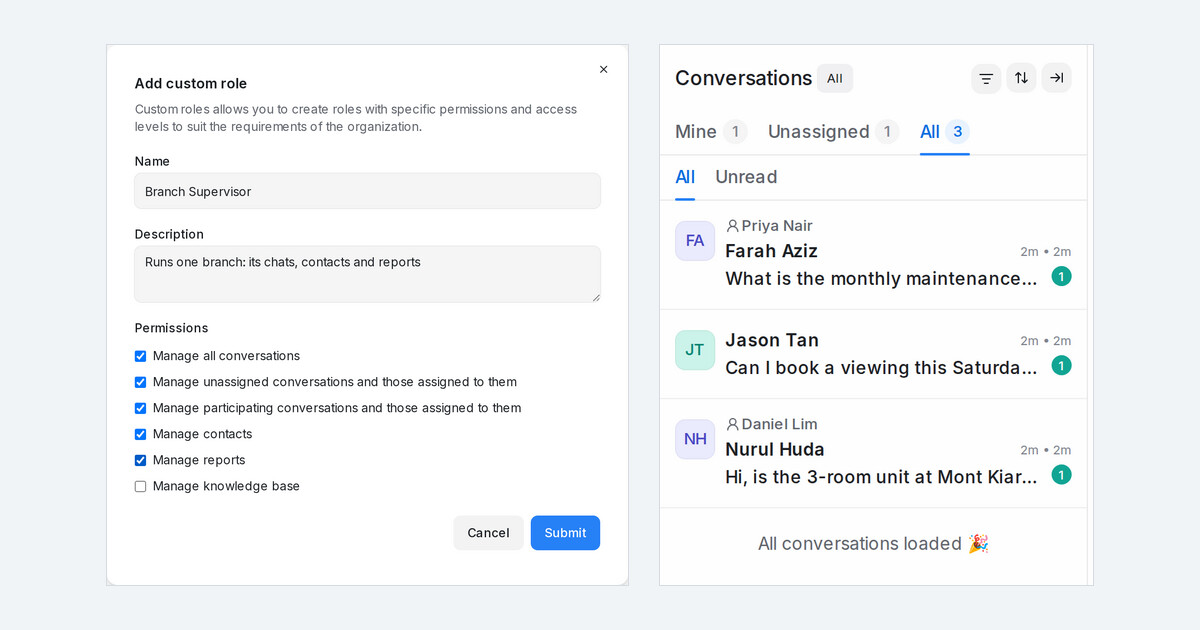
Create a custom role, such as a branch supervisor, that sees every chat, contact and report of the inboxes you give them, and nothing from your other inboxes.
Read more: Give a supervisor only their own inboxes with custom rolesKeep the opening in your own language when a customer arrives from an ad or a post
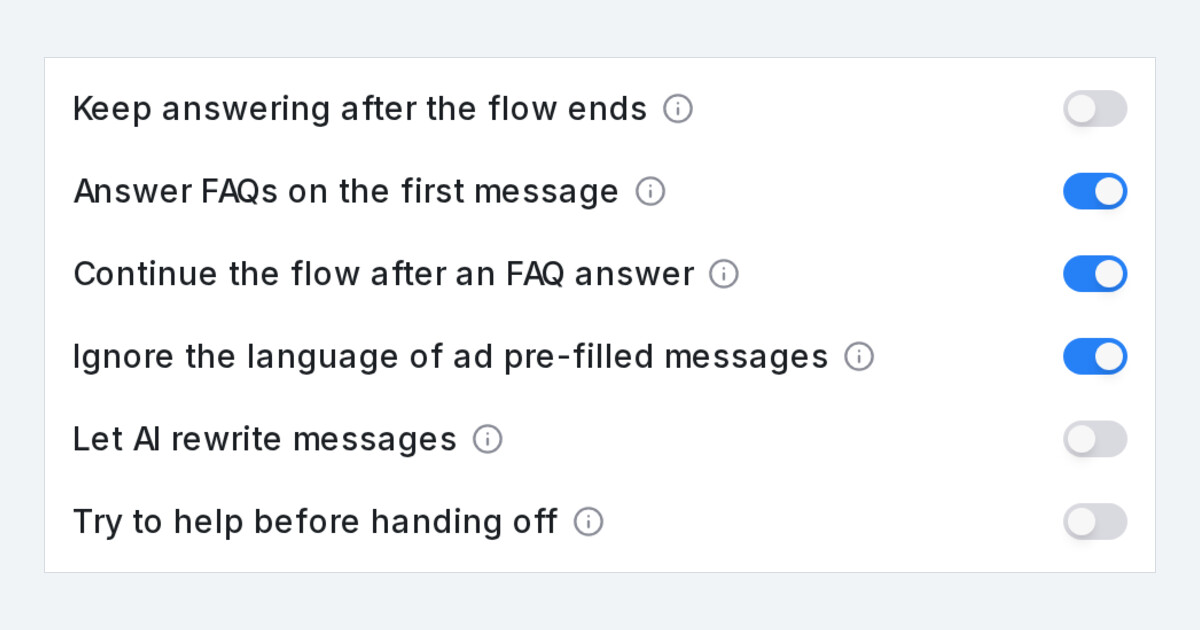
A Flow Agent setting stops the pre-filled first message of a Meta ad or a post's WhatsApp button from setting the language, so the opening goes out as written.
Read more: Keep the opening in your own language when a customer arrives from an ad or a postContact labels stay in step with Meta Business Suite on your Facebook inbox
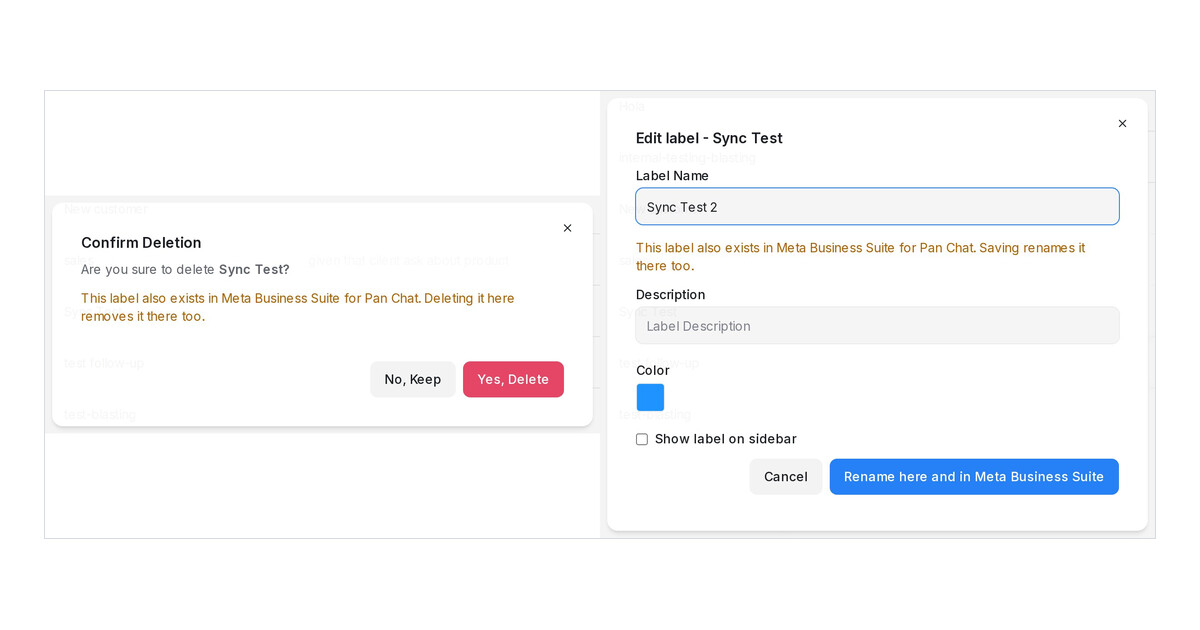
A label set on a Messenger contact in Mampu AI appears on the same person in Meta Business Suite, and labels set there appear here, both ways and on their own.
Read more: Contact labels stay in step with Meta Business Suite on your Facebook inboxMatch labels by a word they contain, wherever labels are a condition
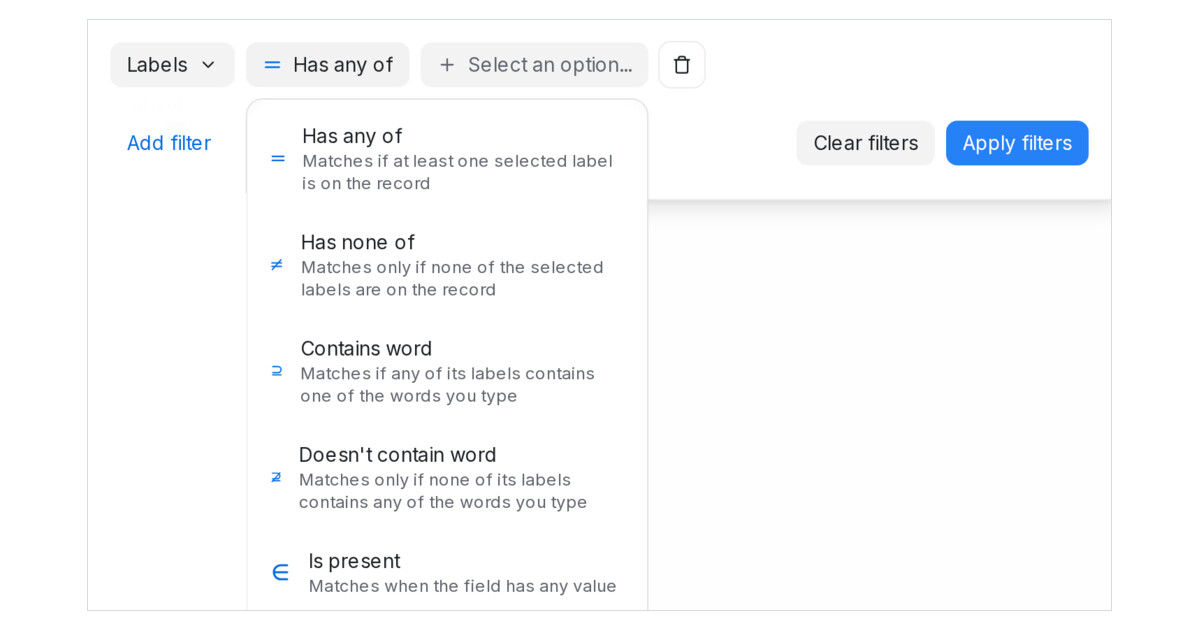
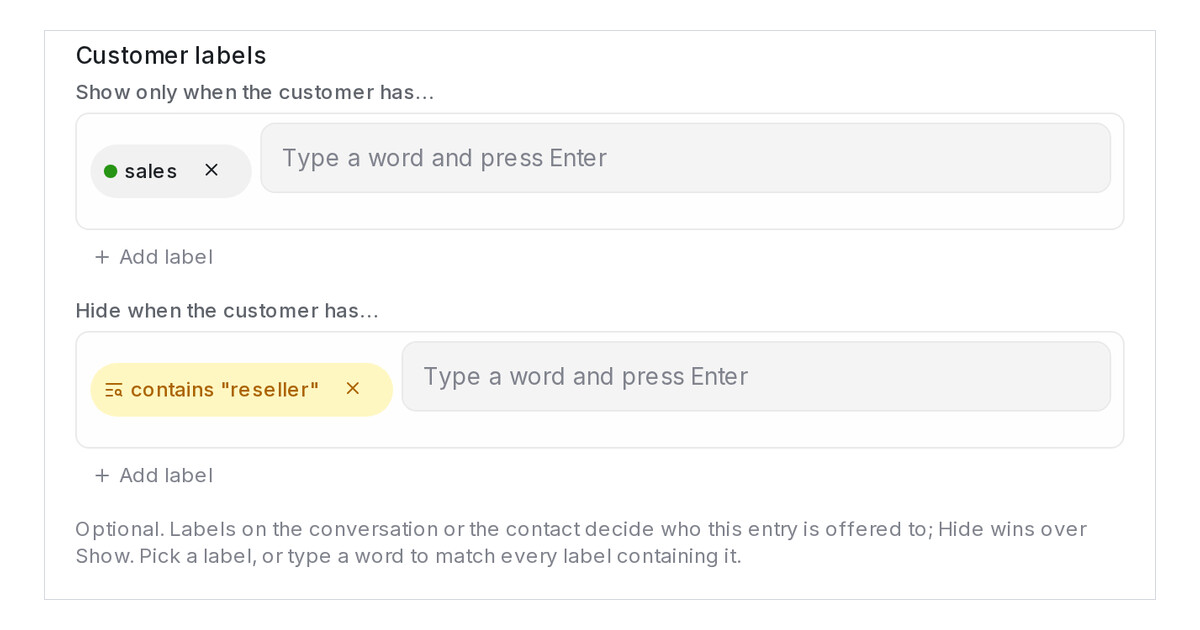
Label conditions take typed words as well as picked labels: any label whose title contains the word matches, on every builder.
Read more: Match labels by a word they contain, wherever labels are a conditionSee Meta's notices about your Facebook Page or WhatsApp number on the inbox
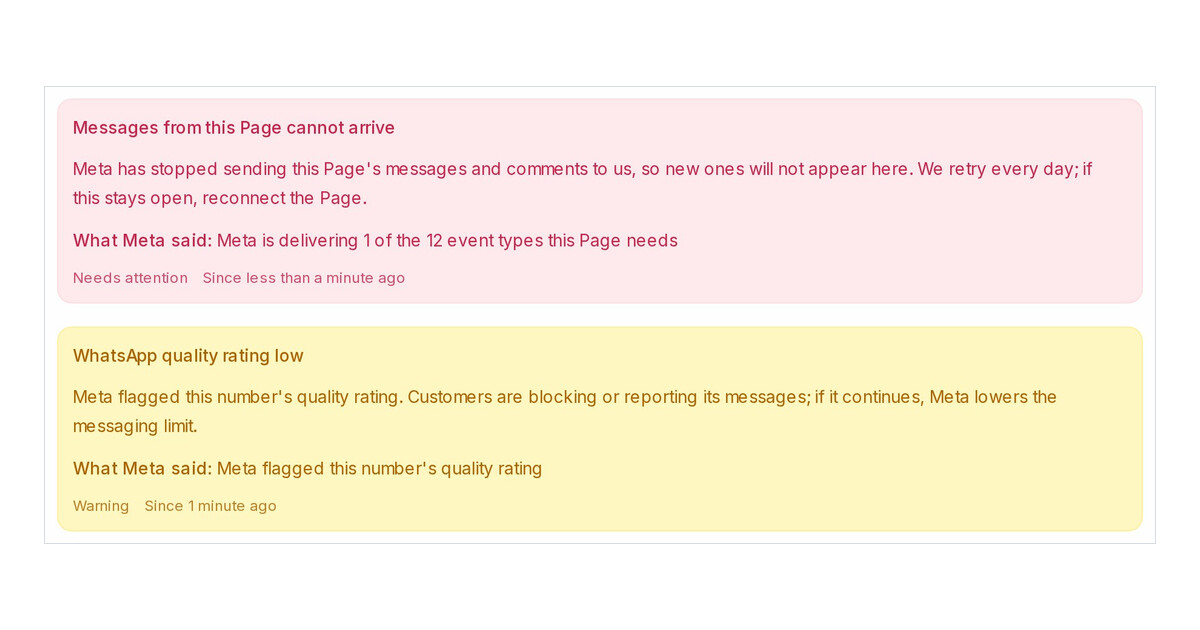
A restriction, a low quality rating, a rejected template or an expired login now shows on the inbox and emails your administrators, with what to do next.
Read more: See Meta's notices about your Facebook Page or WhatsApp number on the inboxPast Messenger and Instagram conversations arrive when you connect a Page or account
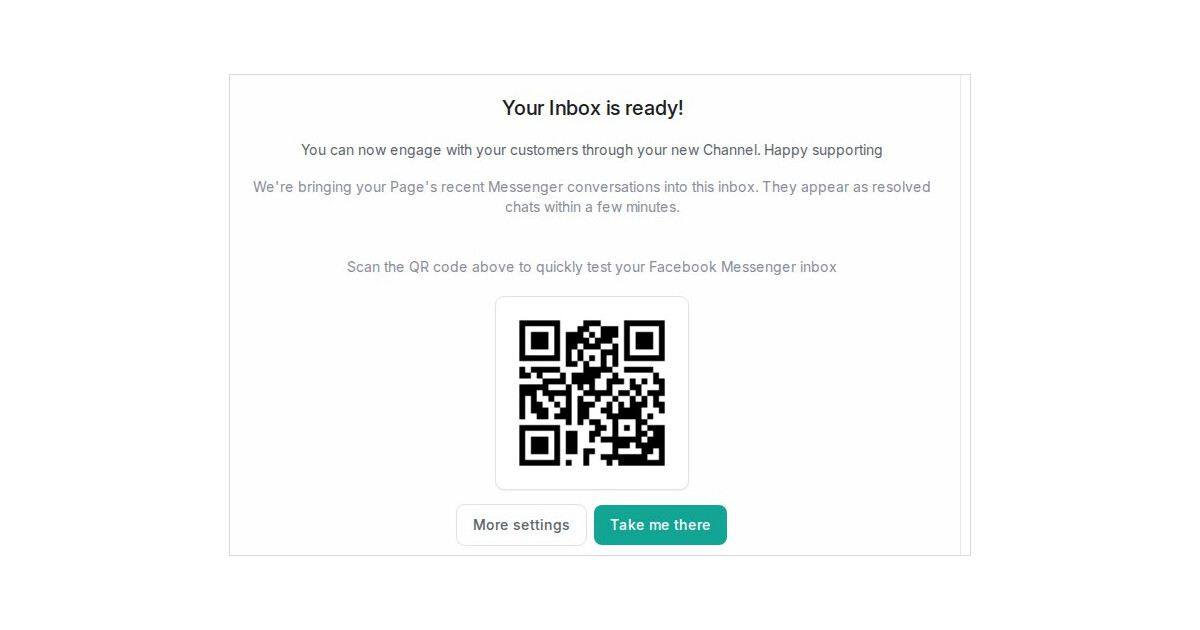
Connect a Facebook Page or Instagram account and its recent conversations come along as resolved chats, so your team and your AI agent start with the history.
Read more: Past Messenger and Instagram conversations arrive when you connect a Page or accountSend every unmatched reply down a default path in a flow condition
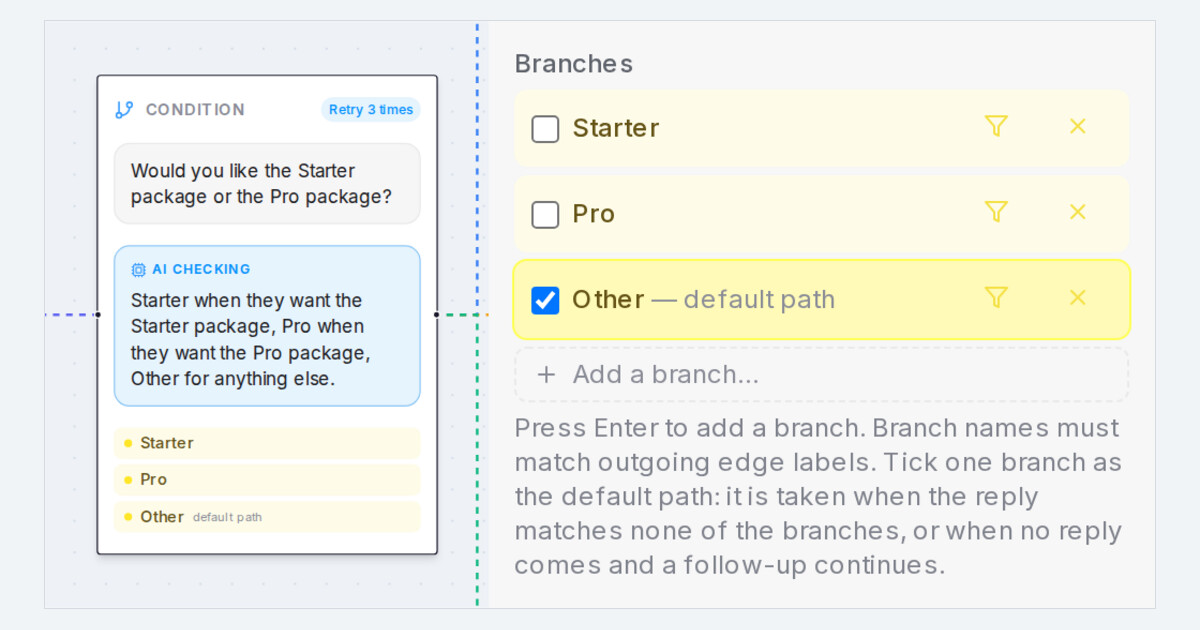
Tick one branch of a Condition step as the default path and replies that match no branch continue down it, after the agent answers any question in them.
Read more: Send every unmatched reply down a default path in a flow conditionShow an FAQ or promo only to customers with a certain label
Show an FAQ or promo entry only to customers who carry a label, or hide it from them, with labels picked by name or by a word they contain.
Read more: Show an FAQ or promo only to customers with a certain labelTrigger an automation rule on any of several words
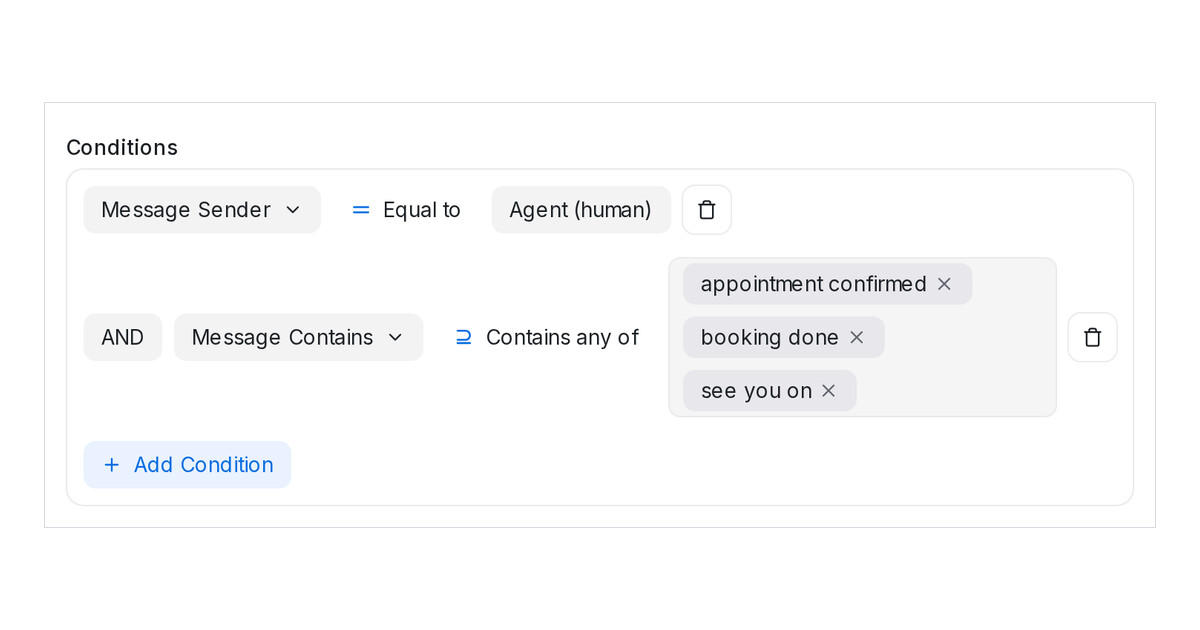
The Message Contains condition takes a list of words as chips and matches when a message contains any of them, so one rule covers every phrasing.
Read more: Trigger an automation rule on any of several wordsOffer appointment times that are spread out, not back to back
Flow agents now offer appointment times at least 3 hours apart. Each calendar has a gap setting; 0 offers the nearest times in a row.
Read more: Offer appointment times that are spread out, not back to backChoose which chat messages a webhook sends to your CRM
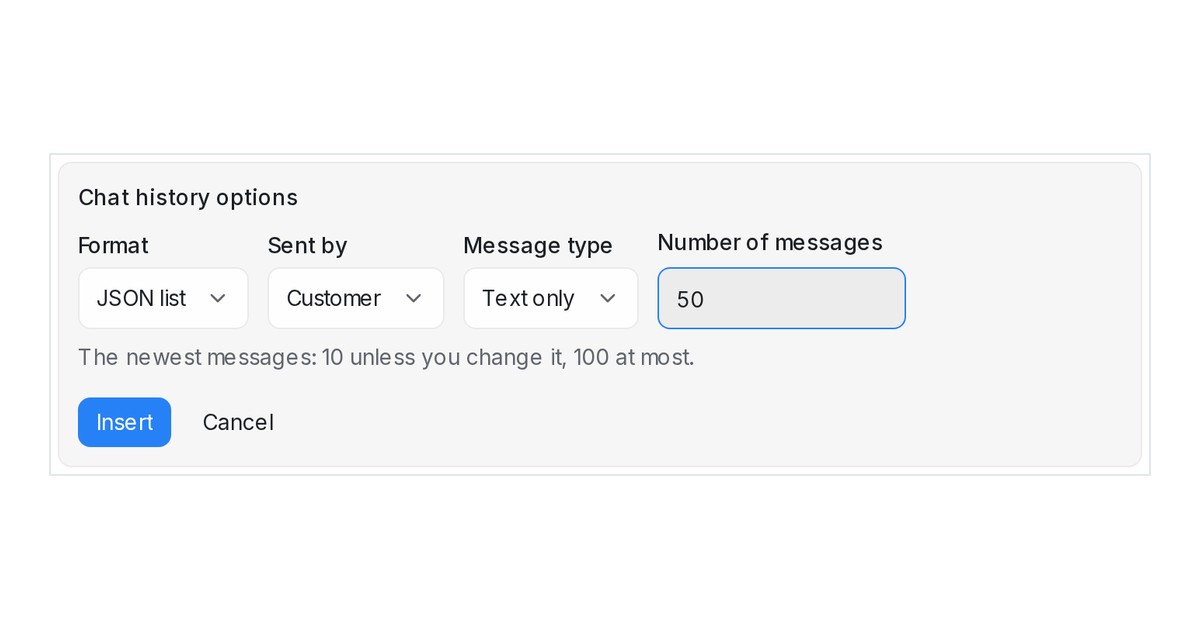
The Send Webhook Event action can send a conversation's chat history narrowed by sender, message type and count, up to 100 messages.
Read more: Choose which chat messages a webhook sends to your CRMSee every ad click a customer makes, and send the latest to your sheet
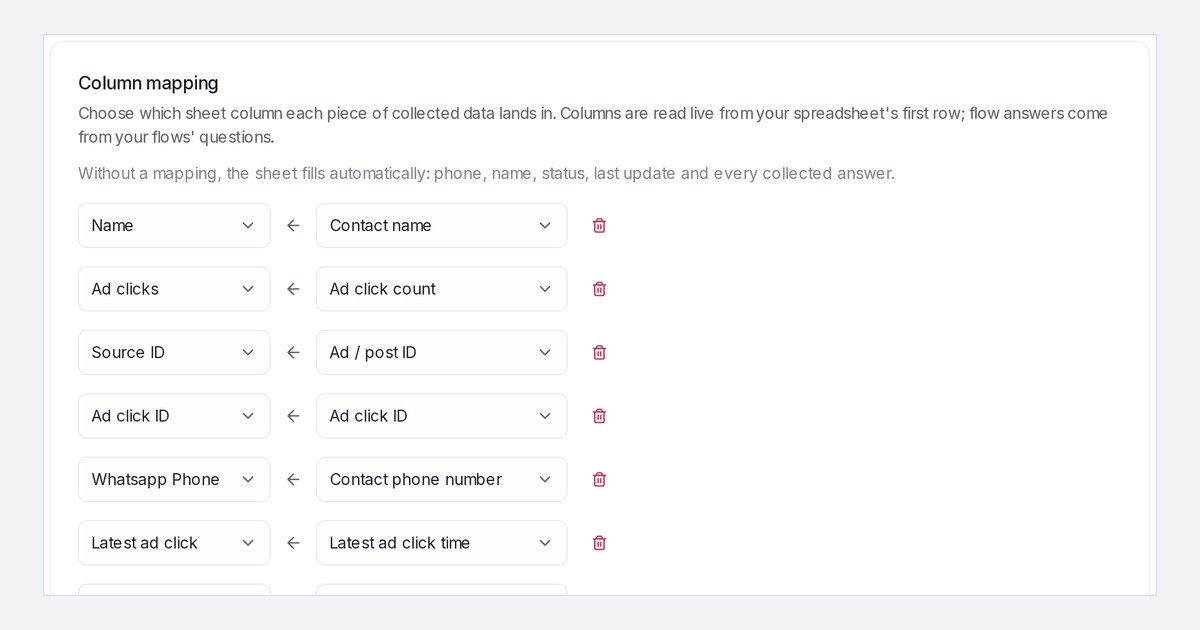
Each tap on a Click-to-Message ad is recorded on the conversation; Google Sheets, Lark Base and webhooks can send the latest click, its time and the count.
Read more: See every ad click a customer makes, and send the latest to your sheetSee your FAQs on the AI Brain Map and merge the ones that say the same thing
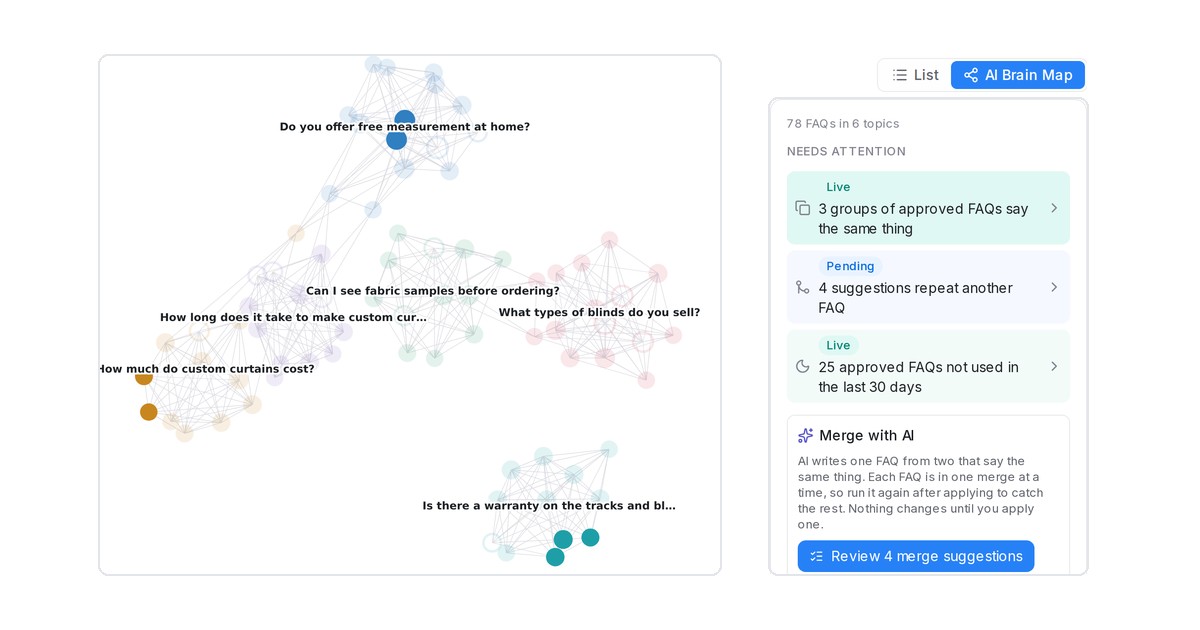
The AI Brain Map groups your FAQs into topics by meaning, flags repeats and unused answers, and lets AI suggest merges that you review first.
Read more: See your FAQs on the AI Brain Map and merge the ones that say the same thingSend a photo, a video and several texts from one canned response
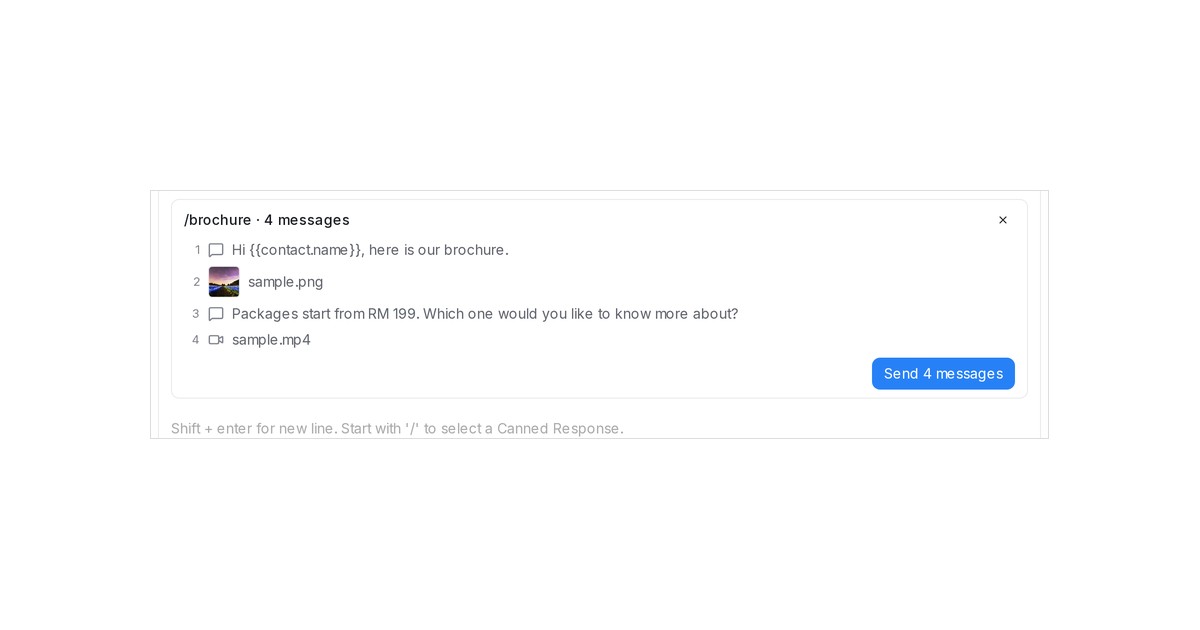
A canned response can now hold several messages — texts, photos, videos and files — and one click in the reply box sends them all, one after another.
Read more: Send a photo, a video and several texts from one canned responseTake a separate path when a customer stops replying
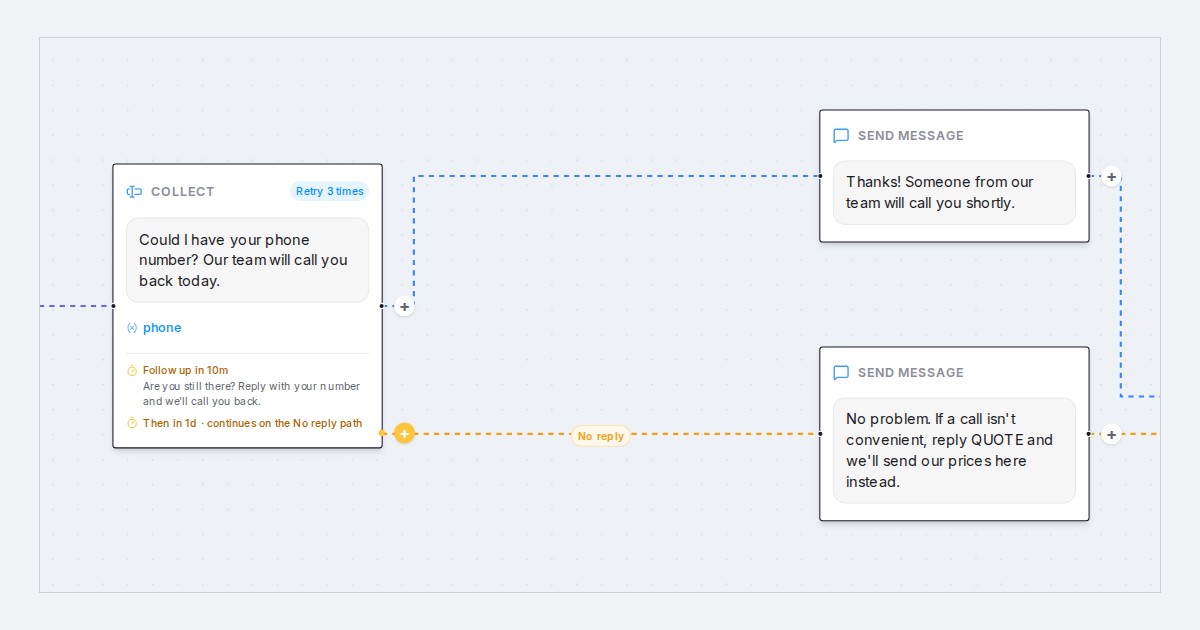
A question in a Flow Agent can now continue on its own No reply path after the follow-ups, so a quiet customer gets a different offer, question or ending.
Read more: Take a separate path when a customer stops replying